The Nextcloud All-in-One (AIO) Docker image is a straightforward way to set up a complete Nextcloud installation on Windows. It provides you with easy deployment and maintenance while allowing you to keep your data under your control.
In this blog, you will find the instructions for setting up Nextcloud AIO on Windows 10 and 11. It is compatible with PCs with an x64 CPU, at least 8GB of RAM, and 4 cores.
Before you start
First, you will need to get a public domain and be able to open ports for the guide to work. Also, make sure that you are not behind CGNAT.
Please also keep in mind that the following instructions are meant for installations without a web server or reverse proxy (like Apache or nginx) already being in place. If you want to run AIO behind a web server or reverse proxy, please refer to the corresponding documentation page.
Make sure to adjust /run/desktop/mnt/host/c/ncdata to your needs. This path is equivalent to C:\ncdata on your Windows host, so you need to translate the path accordingly. The path that you enter needs to start with /run/desktop/mnt/host/. Append to that the exact location on your Windows host, e.g. c/ncdata which is equivalent to C:\ncdata.
3. Then you can open the AIO interface at https://localhost:8080.
⚠️ Always use an IP address or localhost if you access this port and not a domain, as HSTS might block access to it later.
Accept the self-signed certificate, then you should see this:
4. Click on “Open Nextcloud AIO login” and enter your password.
5. Now you should see the AIO dashboard.
6. Next, type in your public domain that you set up before starting this guide. The interface should help you figure out the exact steps. (Set up DDNS for your domain to point to your public IP and port-forward at least ports 443/tcp, 3478/udp, and 3478/tcp to your Windows machine.)
7. After you’ve set it up correctly, it should allow you to pass to the next step, where you can configure optional add-ons and the timezone. Then you can click on “Download and start containers”.
8. You should now see a spinner icon. The process will take around 10 minutes or more, depending on your internet speed.
9. When all containers are downloaded, you will see this screen showing the containers still starting, which will do the first installation for you:
10. When everything is done, you should see this screen:
11. You can now open your new Nextcloud instance and log in with your admin credentials.
12. In the “Backup and restore” section, enter a path like /run/desktop/mnt/host/c/backup and submit it. This path is equivalent to C:\backup on your Windows host, so you need to translate the path accordingly. As mentioned earlier, the path needs to start with /run/desktop/mnt/host/, so append to that the exact location on your Windows host, e.g., c/backup, which is equivalent to C:\backup.
That’s it! Now everything is set up and ready for production.
Discover more about Nextcloud All-in-One and its many options
This Nextcloud AIO manual was created by Simon Lindner, Software Engineer at Nextcloud. You can check out our podcast interview with Simon, in which he explains more about his interest in making Nextcloud and open source software accessible to everyone.
Make sure to read our guide on how to set up Community Containers, developed by the Nextcloud community, for your Nextcloud instance. With these useful features, including Caddy, Fail2ban, and Pi-hole, you can enhance your Nextcloud AIO in a couple of clicks.
At the second Nextcloud Enterprise Day Copenhagen, municipalities, universities and other public organisations discussed how they can reduce their dependency on US Big Tech. Read our recap of the event.
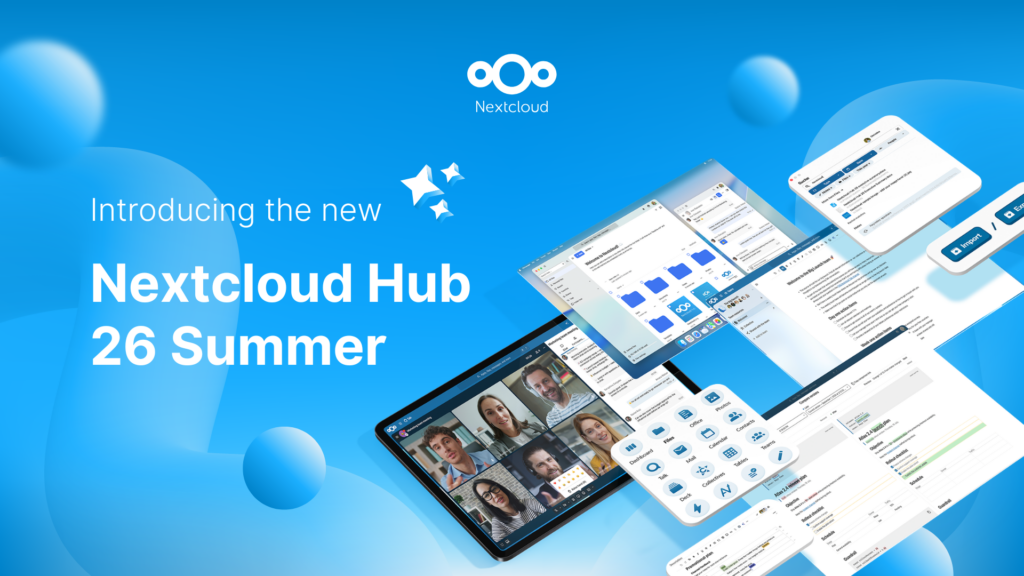
Created in a joint effort of our team, community, and partners, Nextcloud Hub 26 Summer learns from real people using our tools every day. Create your team's own space with Nextcloud Teams, organize your memories in new Nextcloud Photos, and enjoy the updates you asked for across all apps. Read on for a full rundown of our latest release!
We are introducing the Nextcloud ISV Partner Program to support independent app developers through the Nextcloud app store. Read more in this article and get in touch with our team if you want to join the program.
We explore challenges Nextcloud Talk solves that Microsoft Teams can't, uncovering a stronger alternative for organizations that that prioritize digital sovereignty, compliance, and control.
Following two successful Nextcloud Enterprise Days in The Hague in 2025, we brought the event to Utrecht this year, where a massive 750 registrations brought a big crowd to the Jaarbeurs venue. The kickoff in the morning pre-announced the launch of the book “Sovereignty! But how?“ by well-known Dutch IT security journalist and author Brenno […]
In the Nextcloud 2024 wrap-up, we want to take a moment to celebrate this year's achievements. Join us as we continue to reimagine what’s possible - shaping a world where open source, privacy and connection come together and drive progress for the greater good.
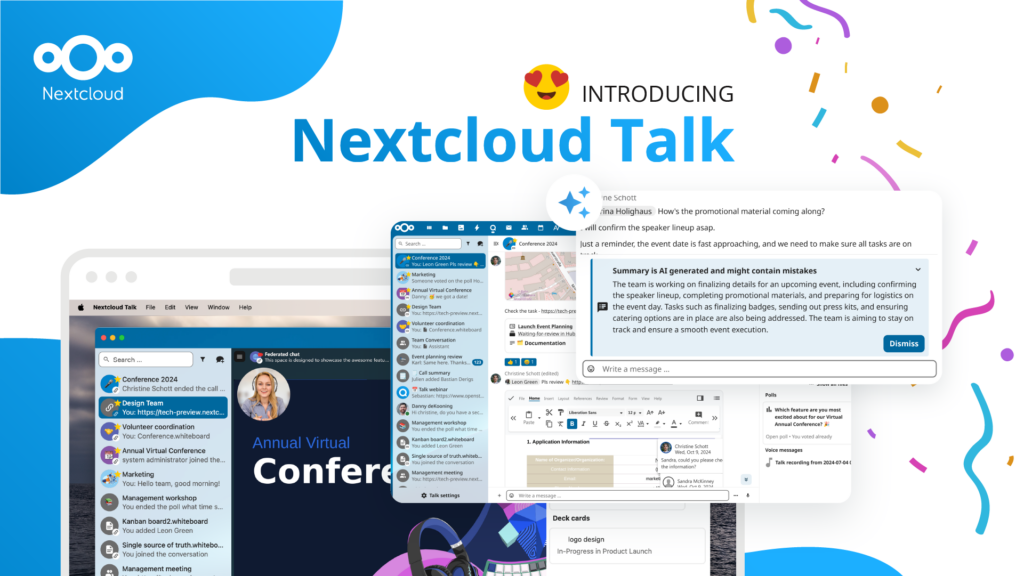
Organisations, small and large, need a way to ensure the resiliency and digital sovereignty of their operations – an open-source, privacy-respecting alternative to Teams. And today, we present that solution - Nextcloud Talk.
Nextcloud has been recognized with the World Summit Award Germany that selects and promotes local digital innovation improving society, aiming to contribute to the United Nations' agenda of sustainable development goals.
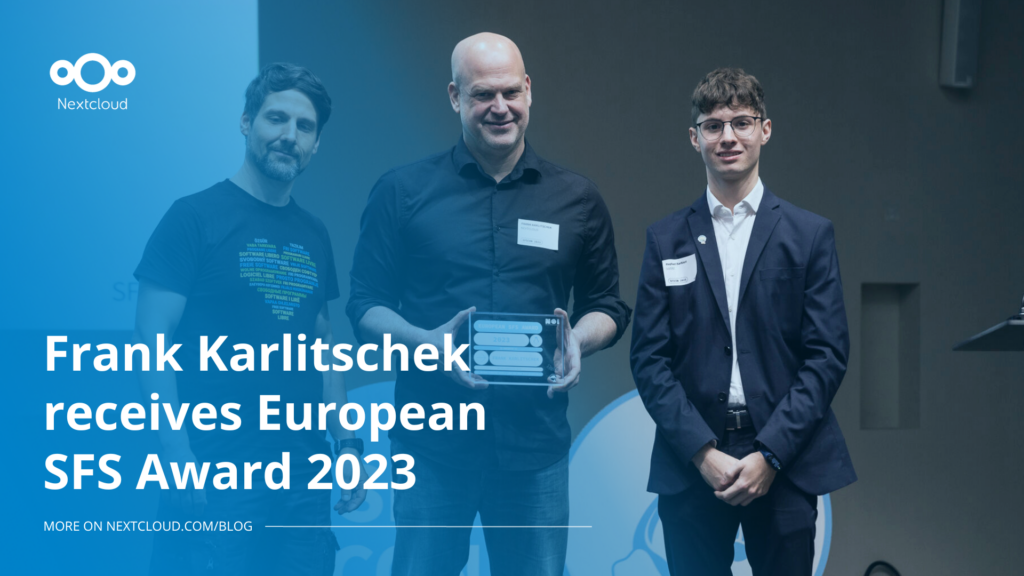
DIE ZEIT, a prominent German outlet, interviewed Nextcloud’s founder Frank Karlitschek for an article on Microsoft’s anti-competitive behaviour on the European office software market. Read for a recap of the article and the key takeaways.
MagentaCLOUD’s migration to Nextcloud in 2021 resulted in a fully equipped Online Storage with an integrated online office suite that further improves the user experience, flexibility and security for customers.
We bring you a major update to the Nextcloud AI Assistant, plus the news we work with several big hosting providers like IONOS and OVHcloud to bring AI-as-a-Service options to you!
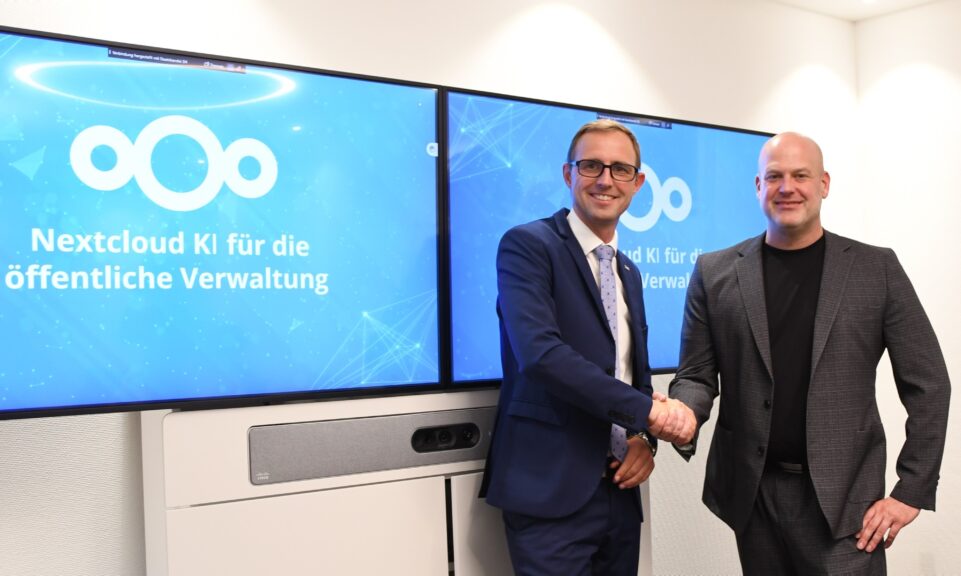
Bechtle and Nextcloud announce today a complete managed collaboration platform for the public sector that requires no tender and can be deployed immediately.
Discover how to make the switch from ownCloud to Nextcloud. Our quick guide provides insights into the migration process, helping you make the transition smoothly.
Today, US-based file sync & share vendor Kiteworks announced their acquisition of ownCloud and Dracoon. Kiteworks points out that their customers now have access to their file-sharing application. It is to be expected they will not maintain 3 similar products, but customers will have to migrate to the US firms’ platform or look for another […]
As part of Schleswig-Holstein's state digitization strategy, the state chancellery has announced they will work with Nextcloud to develop AI for working with government documents. This comes just after we announced the first private AI assistant last weekend with Hub 6. The German state already uses Nextcloud and their AI strategy aligns with our work on ethical, local AI technologies.
Don’t let your inventory lists and sales figures sit on servers you have no control over. With Nextcloud Spreadsheet, everything stays on your own infrastructure.
Fancy names, same lock-in: here's why Microsoft’s digital sovereignty promises don’t protect European data from US law and why its “sovereign” cloud still leaves you dependent.
Once again, Nextcloud takes home Platinum at the CloudComputing-Insider IT-Awards. For this award, we want to thank everyone who supported us this year and took a minute to put it into a vote! Read more details about the awards in this post.
We save some cookies to count visitors and make the site easier to use. This doesn't leave our server and isn't to track you personally!
See our Privacy Policy for more information. Customize
Statistics cookies collect information anonymously and help us understand how our visitors use our website. We use cloud-hosted Matomo
Service:Matomo
Cookies description:
_pk_ses*: Counts the first visit of the user
_pk_id*: Helps not to double count the visits.
mtm_cookie_consent: Remembers that consent for storing and using cookies was given by the user.
Cookies expiry:_pk_ses*: 30 minutes
_pk_id*: 13 months
mtm_cookie_consent: 30 days