Access to a user-friendly project management tool goes a long way in keeping teams aligned on tasks, deadlines, and priorities. With the Nextcloud Deck app, you can turn your work items into cards in a few clicks and visualize them as a kanban board or Gantt chart.
How to use Nextcloud Deck for private and secure project management
If you’re familiar with tools like Trello, you’ll feel right at home with Nextcloud Deck. The difference is that with Deck, your tasks and projects are stored on your own server, giving you full control over your data.
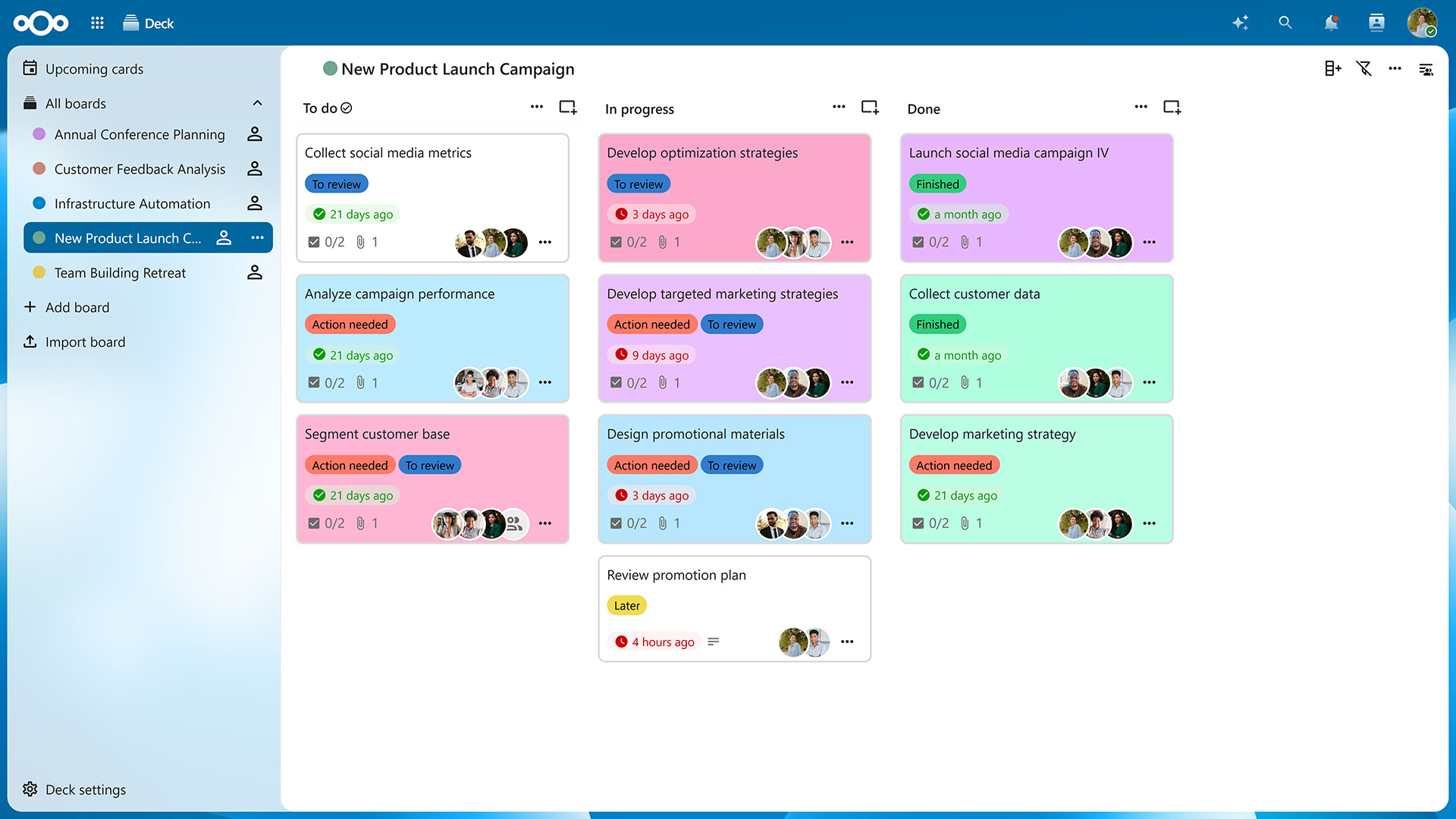
After accessing the app from your navigation bar, you’ll be presented with an overview of your boards. Click on “Add board” to create a new one and then on “Add list” in the top-right corner to create columns for your cards. On a typical kanban board, these lists would be titled “To Do”, “In Progress”, and “Done”, but you can create as many lists as needed to organize your projects.
Now you can create as many cards as you want by clicking on the “Add card” icon on top of each list. Of course, you can freely drag them around to reorder them or move them from one list to another. You can also archive cards and lists you no longer need and restore them later if necessary.
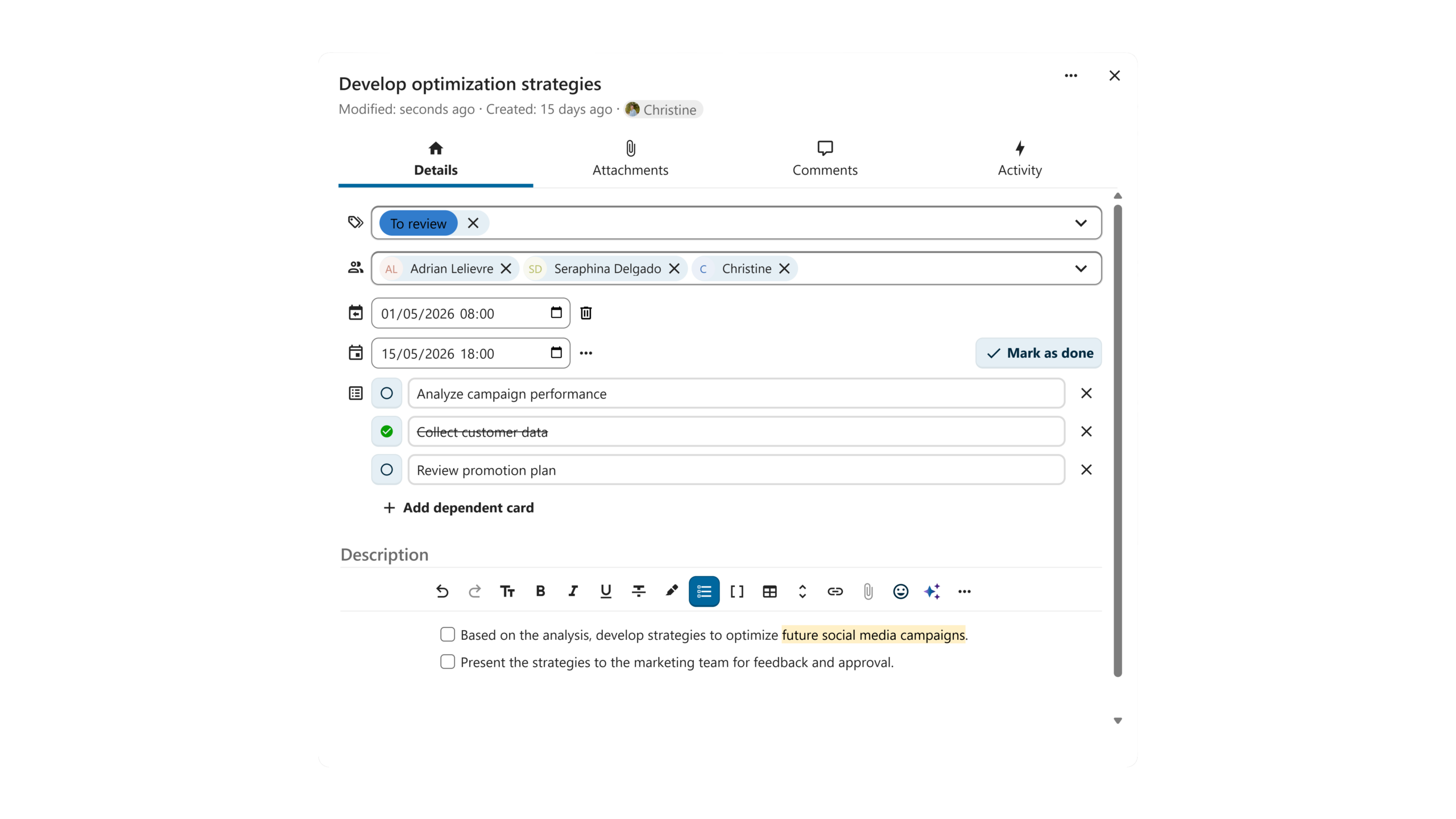
Clicking on a card opens the “Card details” view. Here, you can assign the card to a Nextcloud user, categorize it using tags, choose a start and due date, and add dependent cards (sub-tasks, if you will). In the description field, you can put down relevant information and even create tables, checklists, and more, thanks to Markdown support.
Switching from the “Details” tab to the “Attachments” tab lets you upload files relevant to the task from your computer or share them from Nextcloud Files. In the “Comments” tab, you can start a discussion with your team members and tag any user with access to your board.
Switching from kanban view to Gantt view
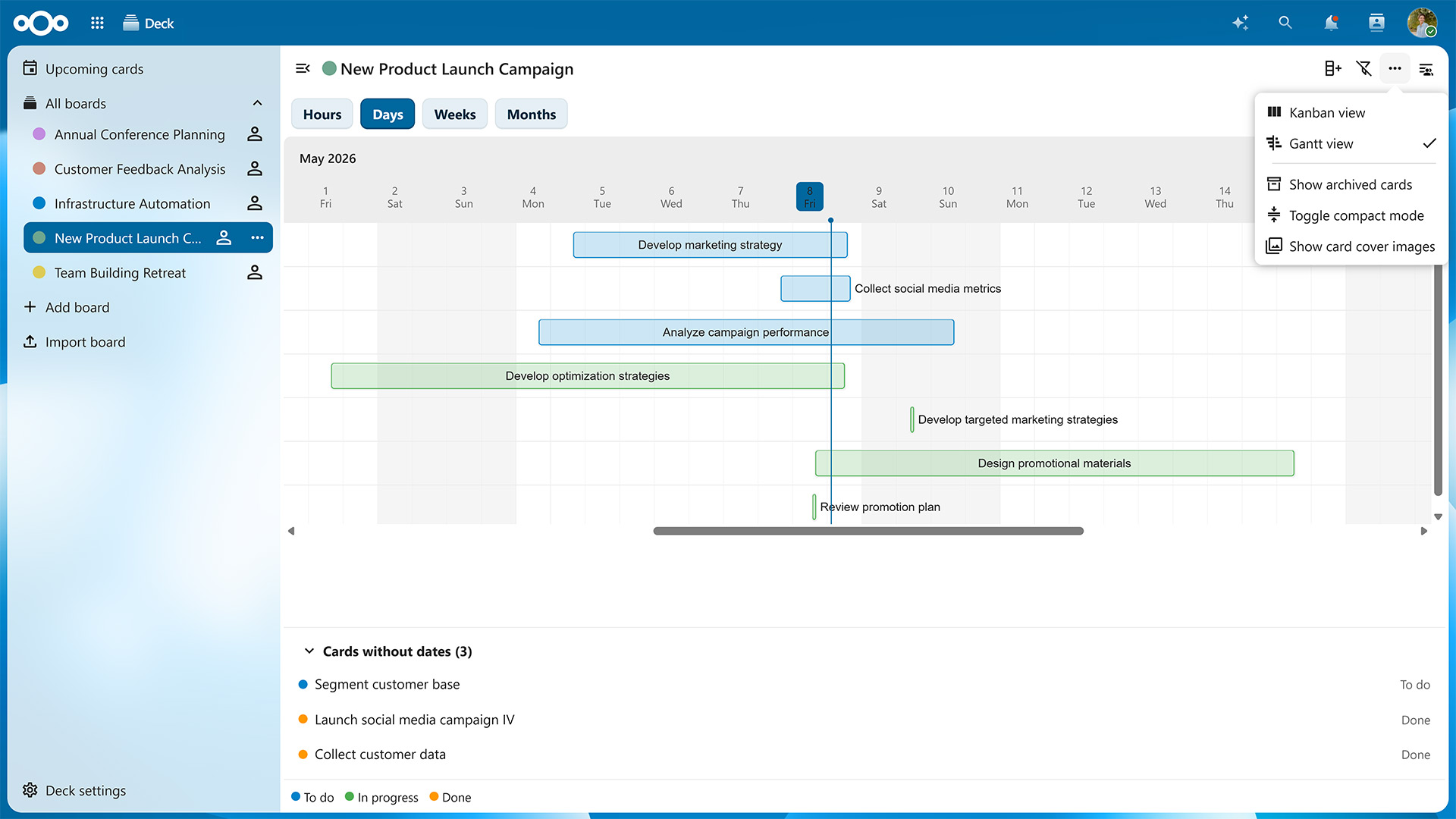
The Nextcloud Hub 26 Spring Release introduced card dependencies and the option to give each card both a start and end date. Thanks to these additions, you can visualize your tasks as a Gantt chart, which shows you a timeline of your tasks with their dependencies and deadlines.
To toggle between the kanban board and Gantt chart, click on the three dots in the top-right corner of the window and select either “Kanban view” or “Gantt view”.
On the Gantt chart, timelines are color-coded based on which list each card is currently located at. You can switch between a monthly, weekly, daily and even hourly view to know exactly what is happening when.
The Gantt view is just one of many new features introduced in Nextcloud Hub 26 Spring. As of this update, you can also:
Assign whole teams and groups to cards
See a card’s author
Choose a board to open by default when launching Nextcloud Deck
Define a list specifically for completed cards
Add custom card backgrounds
The Nextcloud Deck app will see improvements with each upcoming Nextcloud Hub release, so you can look forward to even more features in the future.
Collaboration within and across teams
Nextcloud Deck is part of Nextcloud Groupware, which also includes the Nextcloud Mail, Calendar, Contacts apps, and seamlessly integrates with other Nextcloud apps. For example, clicking on the three dots on a card lets you post it directly to one of your conversations in Nextcloud Talk. Vice versa, you can turn any chat message into a card in a few clicks.
When you collaborate with other team members on the same board, cards with due dates also appear as events in a dedicated calendar, which you can subscribe to in Nextcloud Calendar or any calendar app of your choice.
Features like these enable project management connected with all your workflows and data across Nextcloud Hub. Thanks to Nextcloud’s federated nature, you can also use Nextcloud Deck to collaborate with users on different servers, e.g., by sharing your boards with them and letting them add cards or create lists. You can even assemble entire project teams that include users from different organizations without having to merge systems or create new accounts.
Get started with Nextcloud Deck
If you already have a Nextcloud server, you can download and enable the Deck app in just a few clicks. It will automatically integrate with other apps so you can start planning right away.
For larger organizations, there’s Nextcloud Enterprise, which scales to hundreds or even millions of users, comes with direct support from the Nextcloud engineering team, and lets you shape the roadmap for the tools you’ll use every day. Request your instant trial for a free 1-hour test drive or contact us for a quote tailored to your needs.
Creato grazie all'impegno congiunto del nostro team, della community e dei partner, Nextcloud Hub 26 Summer prende forma da chi realmente utilizza i nostri strumenti ogni giorno. Crea lo spazio del tuo team con Nextcloud Teams, organizza i tuoi ricordi nel nuovo Nextcloud Foto e goditi gli aggiornamenti più richiesti in tutte le app. Continua a leggere per una panoramica completa della nostra ultima release!
Nextcloud Hub 25 Autumn semplifica l'avvio di una potente collaborazione con il pieno controllo dei tuoi dati. Dagli aggiornamenti del design globale al miglioramento dell'usabilità e delle prestazioni, scopri la nostra ultima release in questo blog.
Le organizzazioni, grandi e piccole, necessitano di una soluzione che garantisca la resilienza e la sovranità digitale delle loro operazioni: un'alternativa open source e rispettosa della privacy a Teams. E oggi presentiamo questa soluzione: Nextcloud Talk.
At the second Nextcloud Enterprise Day Copenhagen, municipalities, universities and other public organisations discussed how they can reduce their dependency on US Big Tech. Read our recap of the event.
New maintenance updates are available for Nextcloud Hub. Nextcloud Hub 25 Autumn reaches End of Life. Read more in this post or access the full changelog on our website. Keep your server up-to-date!
A new evolutionary step for Nextcloud Circles, Nextcloud Teams app is a hidden gem that amplifies your team sharing. Read this blog to learn everything about the app.
Salviamo alcuni cookie per contare i visitatori e rendere il sito più facile da usare. Questi dati non lasciano il nostro server e non servono a tracciare il tuo profilo personale! Per maggiori informazioni, consulta la nostra Informativa sulla privacy. Personalizza
I cookie statistici raccolgono informazioni in forma anonima e ci aiutano a capire come i visitatori utilizzano il nostro sito web. Utilizziamo Matomo in cloud.
Servizio:Matomo
Descrizione del cookie:
_pk_ses*: Conta la prima visita dell'utente
_pk_id*: Aiuta a non contare due volte le visite.
mtm_cookie_consent: Ricorda il consenso alla memorizzazione e all'utilizzo dei cookie dato dall'utente.
Scadenza del cookie:_pk_ses*: 30 minuti
_pk_id*: 13 mesi
mtm_cookie_consent: 30 giorni