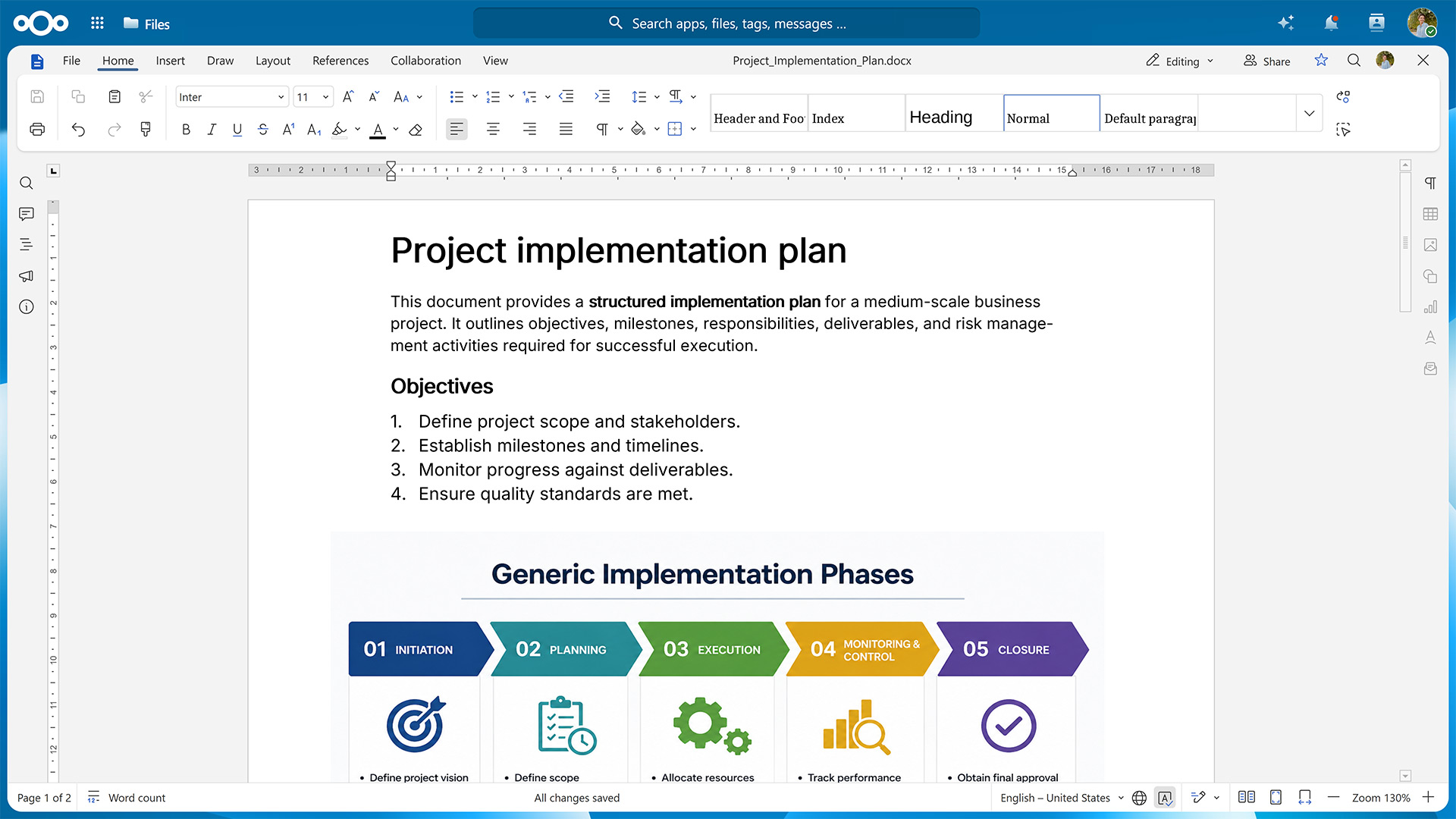
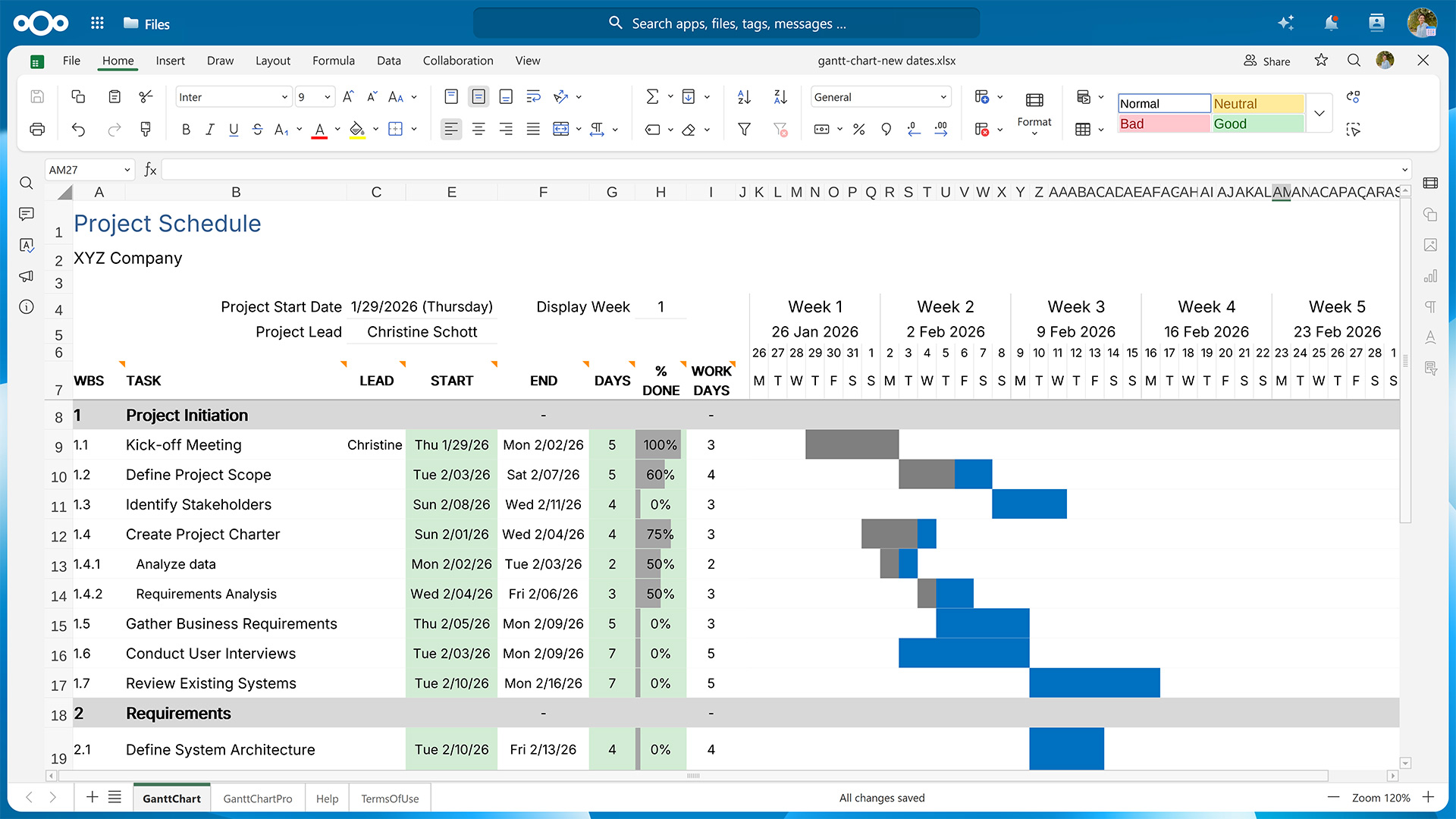
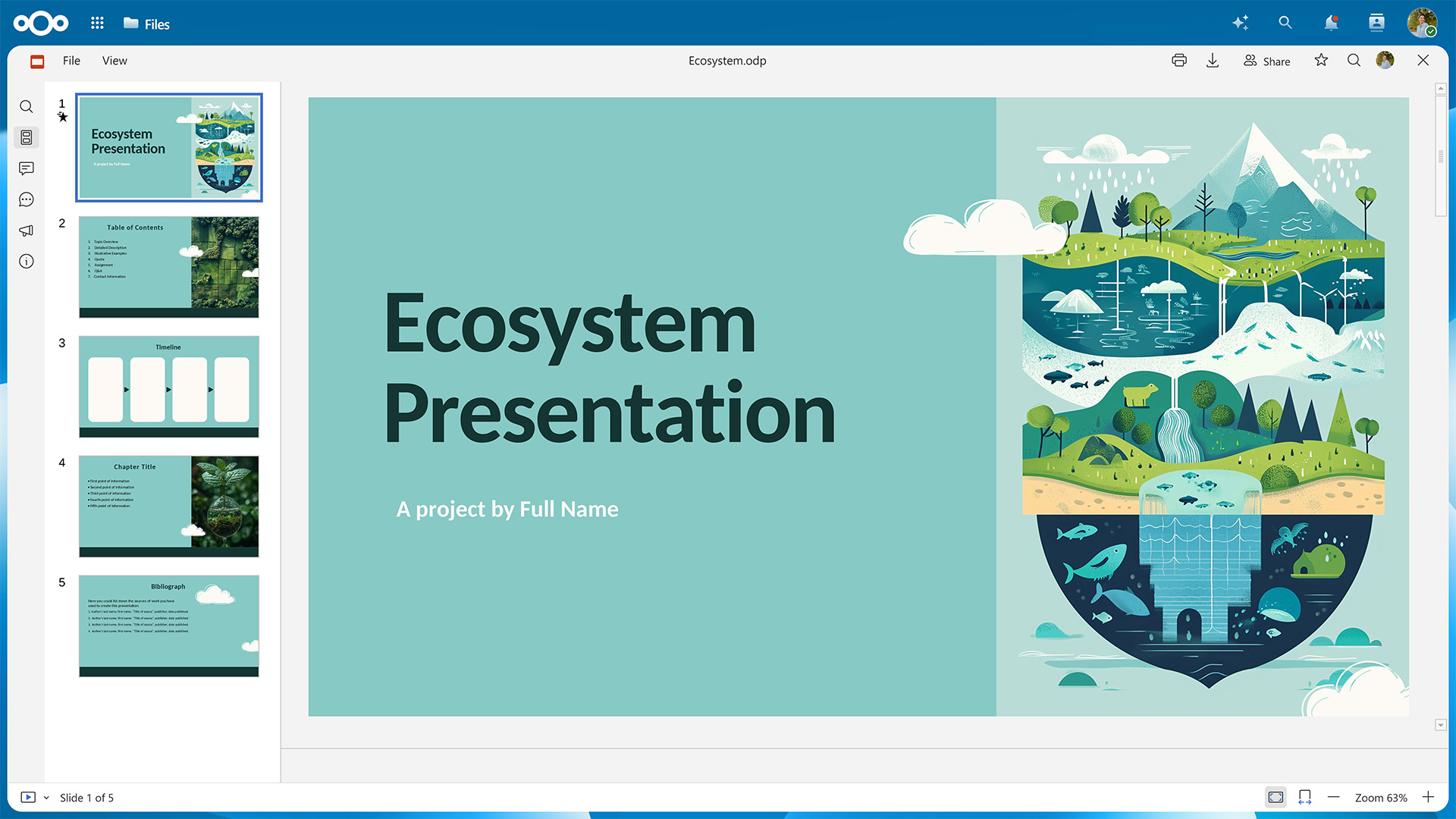
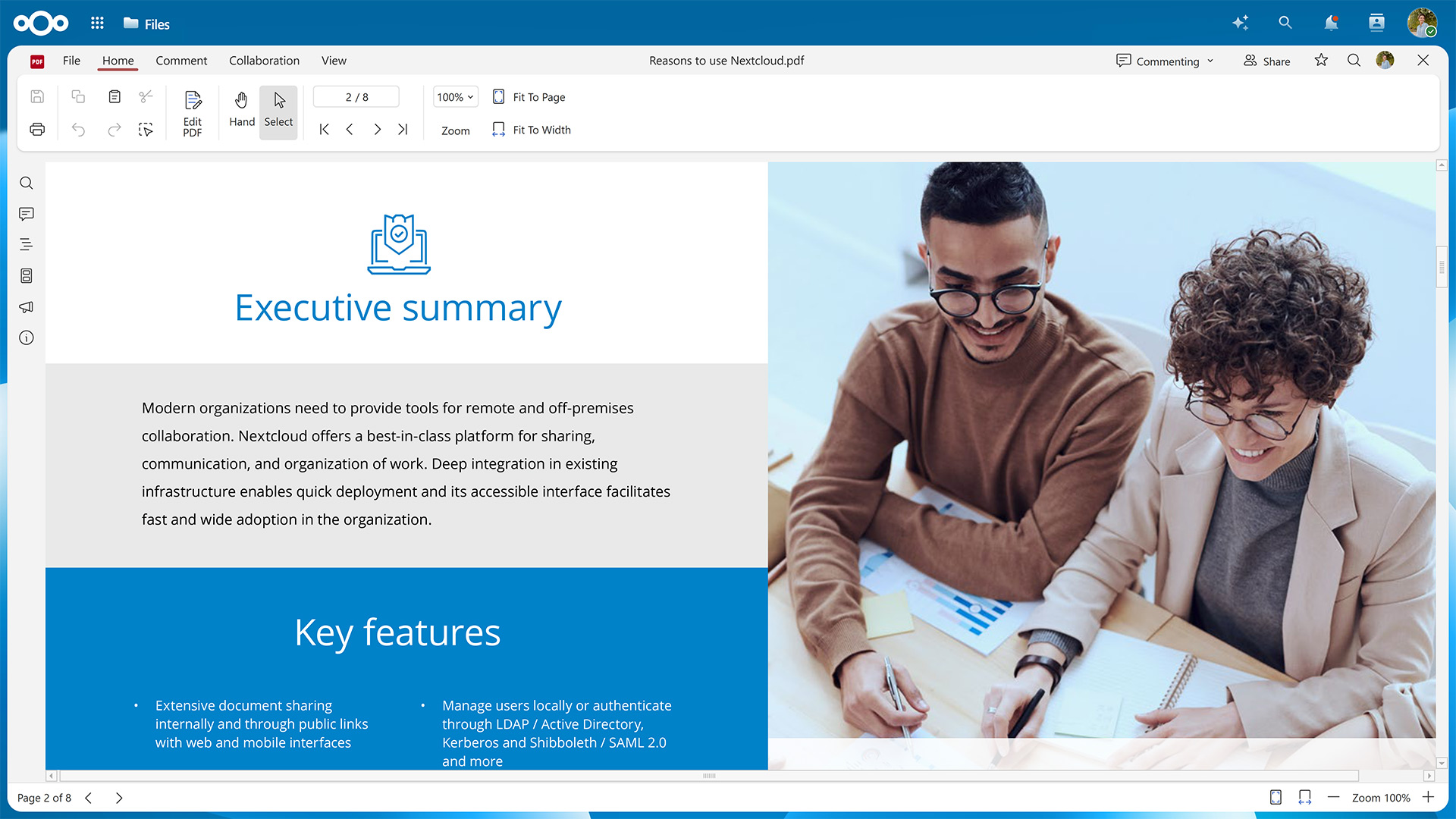
In this guide, we’ll show you how to activate Euro-Office for your Nextcloud instance.
First, you’ll need to set up the Euro-Office Document Server, where the rendering and editing happens.
Then, you’ll have to make sure your Nextcloud can communicate with the server by installing the Nextcloud Office connector app.
Fresh installations using the latest version of the Nextcloud All-in-One Docker image let you choose between Euro-Office and Collabora Online during the initial configuration.
Step 1: Set up the Euro-Office Document Server
You can install the Euro-Office Document Server package on Ubuntu or Debian. If you’re using a different Linux distribution, you can also install it via Docker. All installation methods require amd64 or arm64 architecture.
➡️ Jump to instructions for Ubuntu & Debian
➡️ Jump to instructions for Docker
The minimum requirements for running the Euro-Office Document Server are 4 GB RAM (8 GB recommended for multi-user deployments) and 10 GB free disk space. In production, make sure the Euro-Office Document Server and your Nextcloud can reach each other over HTTPS.
The Document Server does not need to run on the same host as Nextcloud. A reverse proxy (nginx or Apache) in front of the Document Server is required for production deployments to expose it over HTTPS.
Variant A: Install the Euro-Office Document Server on Ubuntu or Debian
The following instructions have been tested on Ubuntu 24.04 LTS (Noble) and Debian 12 (Bookworm). Please refer to the Nextcloud Office documentation pages for Ubuntu and Debian to check whether anything has changed for newer versions.
Debian only: Enable the contrib component
Euro-Office requires the ttf-mscorefonts-installer package, which lives in Debian’s contrib component and isn’t enabled by default. Edit /etc/apt/sources.list and add contrib to each line:
deb http://deb.debian.org/debian bookworm main contrib
deb http://deb.debian.org/debian bookworm-updates main contrib
deb http://deb.debian.org/debian-security/ bookworm-security main contrib
Then update the package index:
sudo apt-get update
1. Install the required packages
Euro-Office depends on PostgreSQL, Redis, RabbitMQ, nginx, and Supervisor. Install them if you haven’t already.
sudo apt-get update
sudo apt-get install -y postgresql redis-server rabbitmq-server nginx supervisor
2. Create the PostgreSQL user and database
There’s a post-install script that connects to PostgreSQL during installation, so create the PostgreSQL user and database first.
sudo -u postgres psql -c "CREATE USER ds WITH PASSWORD 'ds';"
sudo -u postgres psql -c "CREATE DATABASE ds OWNER ds;"
3. Preconfigure the connection details
The package installer configures itself non-interactively using debconf. Pre-seed the database connection details so the post-install script can proceed without a prompt.
echo "ds ds/db-type select postgres
ds ds/db-host string localhost
ds ds/db-port string 5432
ds ds/db-user string ds
ds ds/db-pwd password ds
ds ds/db-name string ds" | sudo debconf-set-selections
4. Download the Euro-Office Document Server package
Get the latest Euro-Office Document Server version from the GitHub releases page.
# Replace <version> and <arch> with your values, e.g. 9.3.1 and amd64 or arm64
wget "https://github.com/Euro-Office/DocumentServer/releases/download/v<version>/euro-office-documentserver_<version>_<arch>.deb" \
  -O /tmp/euro-office-documentserver.deb
5. Install the Euro-Office Document Server package
Now you can install the Euro-Office Document Server.
sudo apt-get install -y /tmp/euro-office-documentserver.deb
The installer generates fonts, WOPI keys, and JS caches, so this can take a minute or two.
When the installation has finished, it will output:
Congratulations, the Euro-Office DocumentServer has been installed successfully!
You can verify that all services are running with the following command:
systemctl is-active ds-docservice ds-converter ds-metrics nginx
The command should then display the following output:
active
active
active
active
And when running a health check …
curl http://localhost/healthcheck
… the output should be true.
Variant B: Install the Euro-Office Document Server via Docker
The quickest way to run the Euro-Office Document Server is via the official Docker image. You’ll need Docker Engine 20.10 or later and 5 GB disk space for the image. For more details, please refer to the « Installing via Docker » page in the Nextcloud Office documentation.
Start the Euro-Office Document Server with the following command, replacing your-secret with a strong random string.
The JWT secret is shared between the Euro-Office Document Server and the Nextcloud Office connector app, so both must use the same value.
docker run -d \
  --name euro-office \
  --restart=unless-stopped \
  -p 80:80 \
  -e JWT_ENABLED=true \
  -e JWT_SECRET=your-secret \
  -v /path/to/data:/var/lib/euro-office/documentserver \
  -v /path/to/logs:/var/log/euro-office/documentserver \
  -v /path/to/config:/etc/euro-office/documentserver \
  ghcr.io/euro-office/documentserver:latest
The three lines starting with -v ensure your data, logs, and config aren’t lost when the container is removed. You can leave them out if necessary.
Once the container is up, you can run a health check with the following command:
curl http://localhost/healthcheck
The command should then output true.
Step 2: Install the Nextcloud Office connector app
Now that you’ve installed the Euro-Office Document Server, you need to establish a connection from your Nextcloud.
To do this, go to the Apps section in your Nextcloud user interface, look for the Nextcloud Office connector app, and download and enable it.
Alternatively, you can use the occ command to install the app:
sudo -E -u www-data php occ app:install eurooffice
Depending on your setup and which installation method you used, you might need to configure the connection. Please refer to « Server settings » on the « Configuration » page in the Nextcloud office documentation for further details.
Conclusion
With both the Document Server and the connector app set up, you’re ready to start working in your new office suite.
Should you run into any problems, we’re happy to help. Just open a new topic on the Nextcloud forums.
New to Nextcloud? You can create a free account through a provider or set up your own server, e.g., with the Nextcloud All-in-One Docker image on Linux or Windows.
For bigger organizations, Nextcloud Enterprise scales from hundreds to millions of users, includes direct support from the Nextcloud engineering team, and gives you a say in shaping the roadmap for the tools you use daily. Start an instant trial for a free 1-hour test drive or get in touch for a quote tailored to your organization.