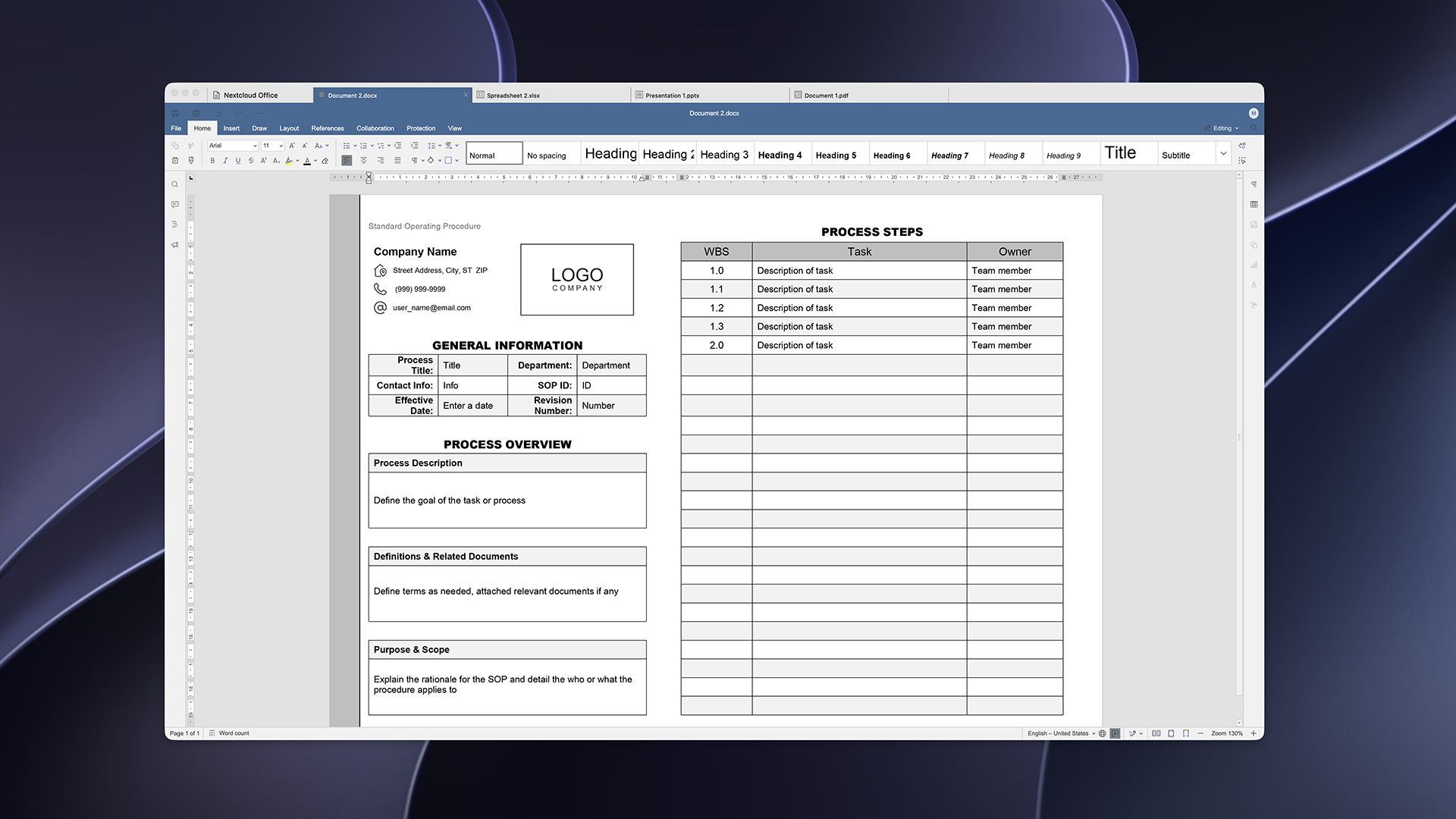
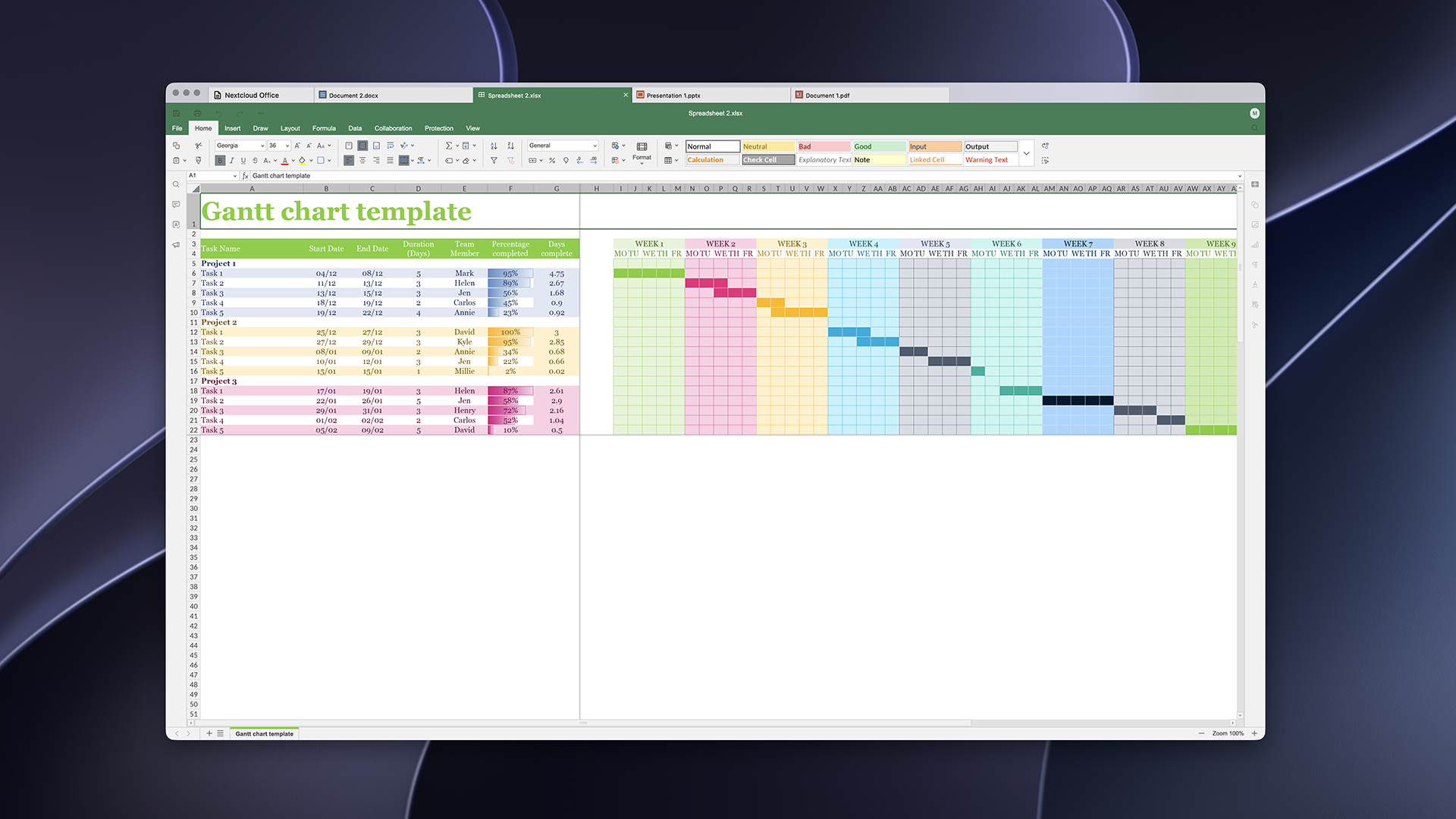
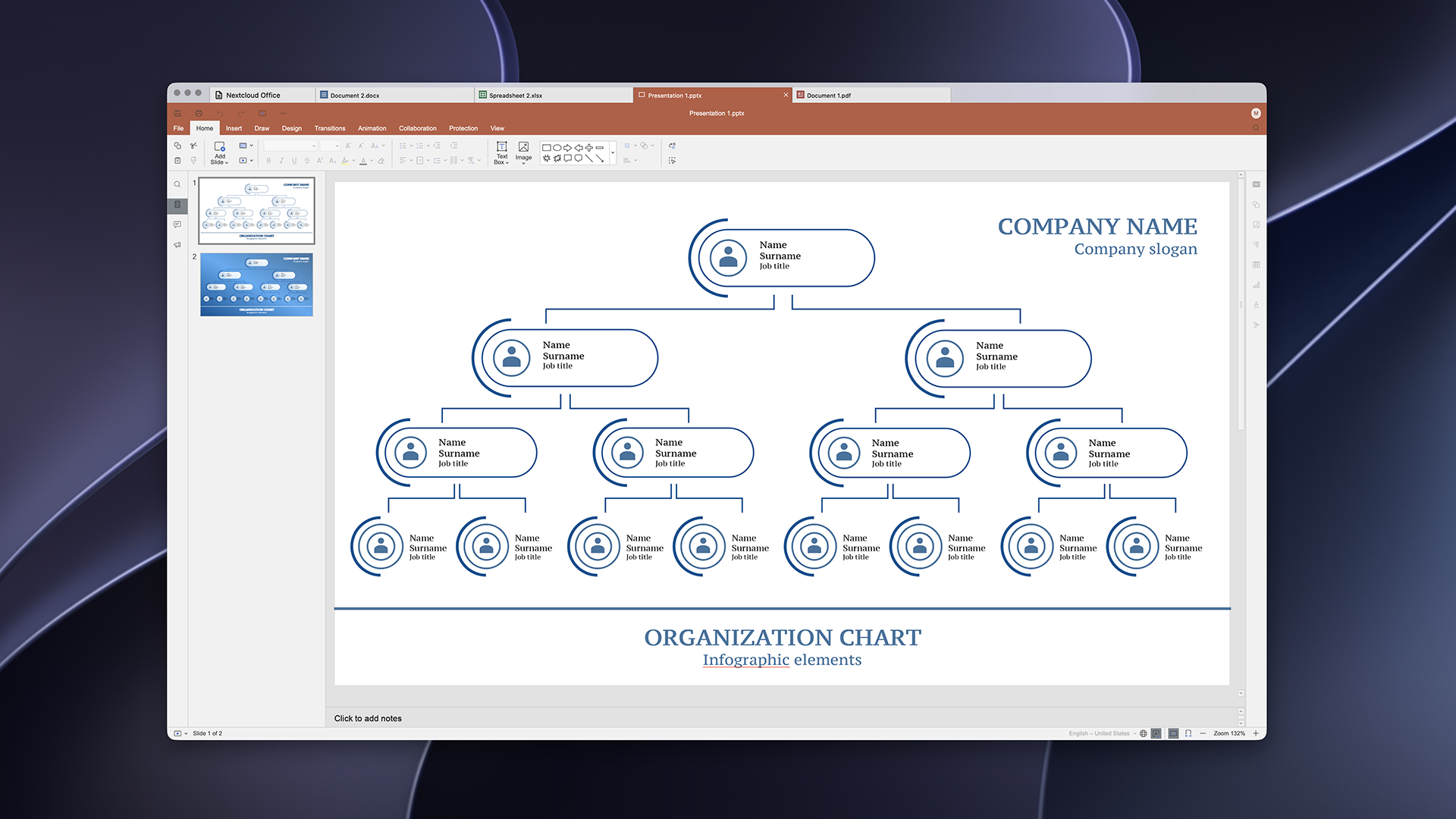
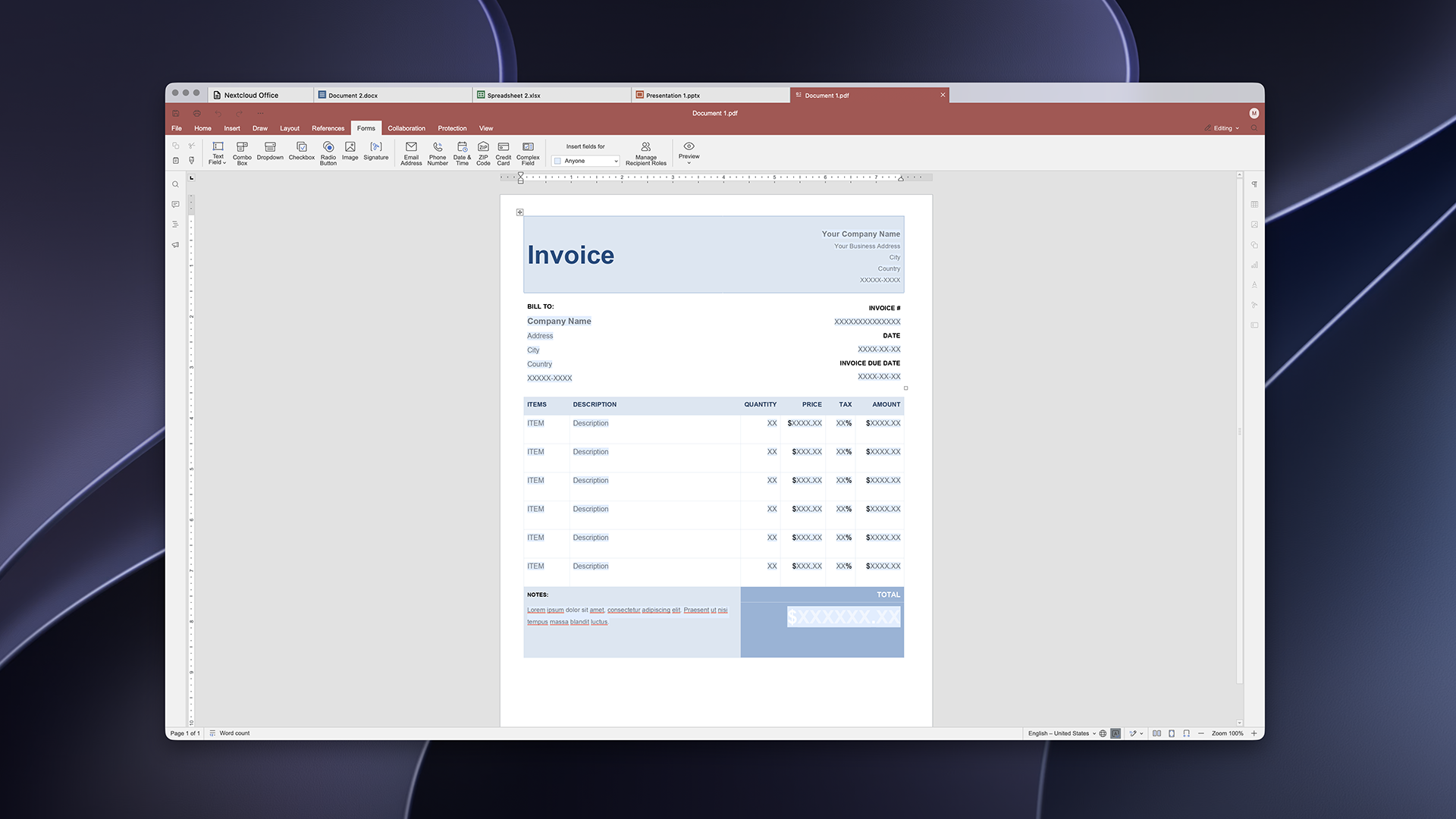
On June 9, 2026, we released the first production-ready version of Euro-Office, a sovereign collaborative office suite developed and governed in Europe. With Nextcloud Hub 26 Summer, we announced the release of the Nextcloud Office Desktop app powered by Euro-Office. Today, the ready-to-use version of the app is available for download. It lets you work offline, switch between Nextcloud Hub in your browser and the app on your computer, and get the same experience on Windows, macOS and Linux.
In this article, you’ll learn about the app’s features, how to install it on Windows, macOS and Linux, and how to co-edit files with your team through Nextcloud Hub.
Free desktop office with maximum file compatibility
The Nextcloud Office Desktop app is a free and open source office suite for Windows, macOS and Linux. Featuring editors for text documents, spreadsheets, presentations, and PDFs, it offers high compatibility with Microsoft Office formats (DOCX, XLSX, PPTX) and open formats (ODT, ODS, ODP). Connect it to Nextcloud Hub to edit files with your team in real time.
The app includes the features of Nextcloud Office in your browser, plus the benefits of working on your computer:
Work offline and keep files on your device
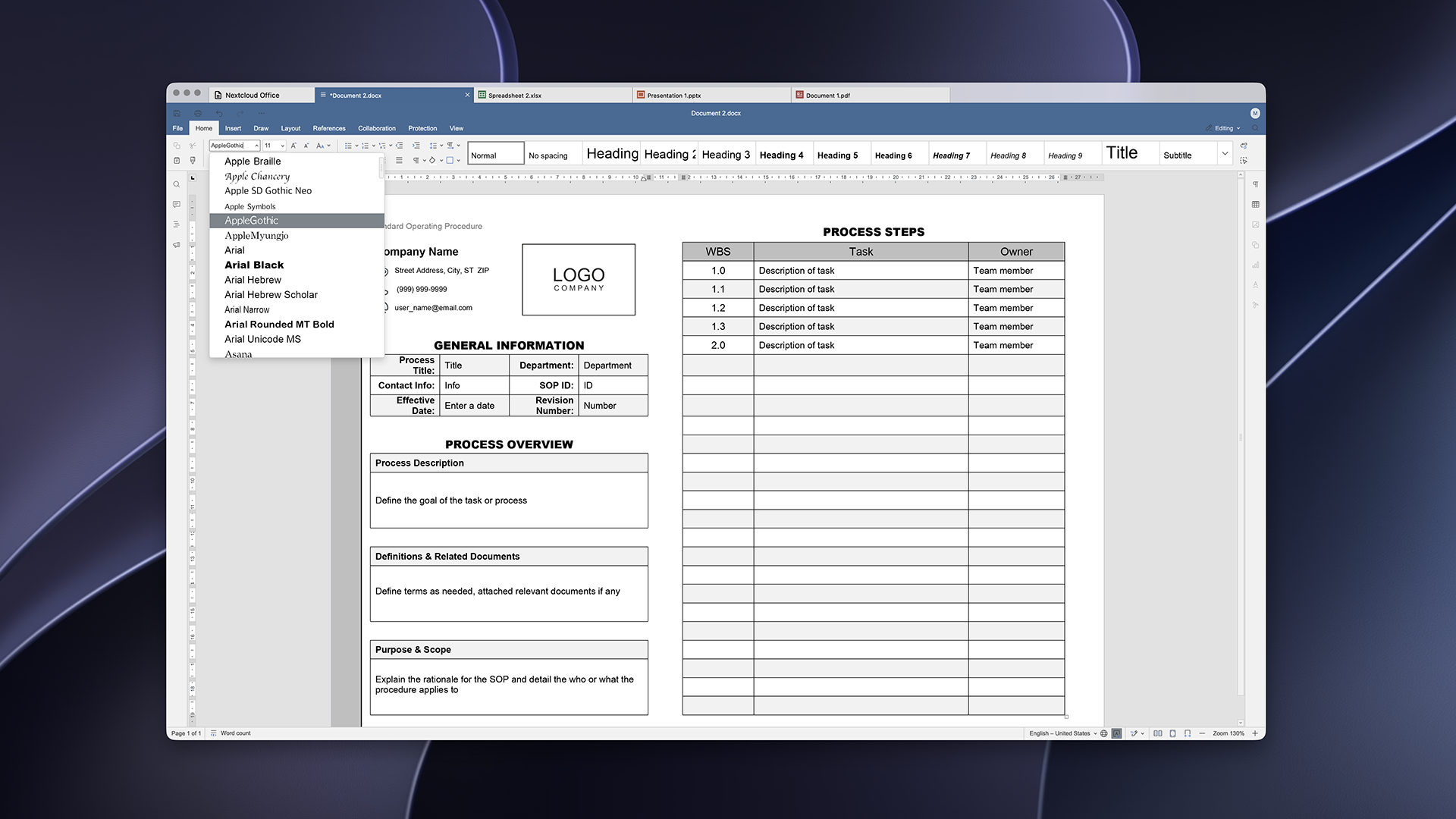
Use the fonts installed on your computer
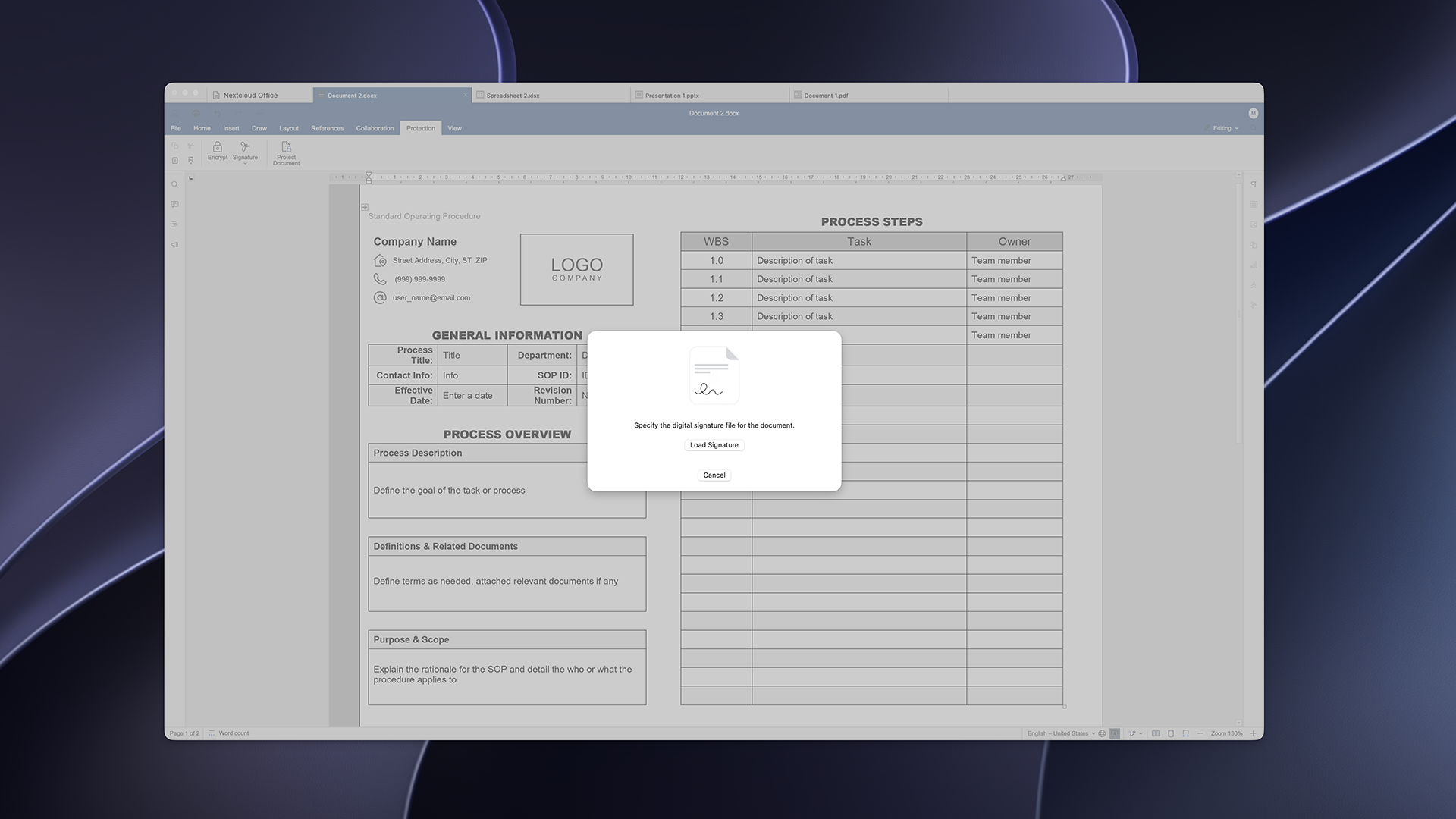
Sign documents digitally
Work with local and online files
With the Nextcloud Office Desktop app, you can edit files locally without an internet connection. Working locally, you keep access to your files and you can keep working when you don’t have internet connection or your online tools go down. You decide which files stay on your computer and which go to the cloud.
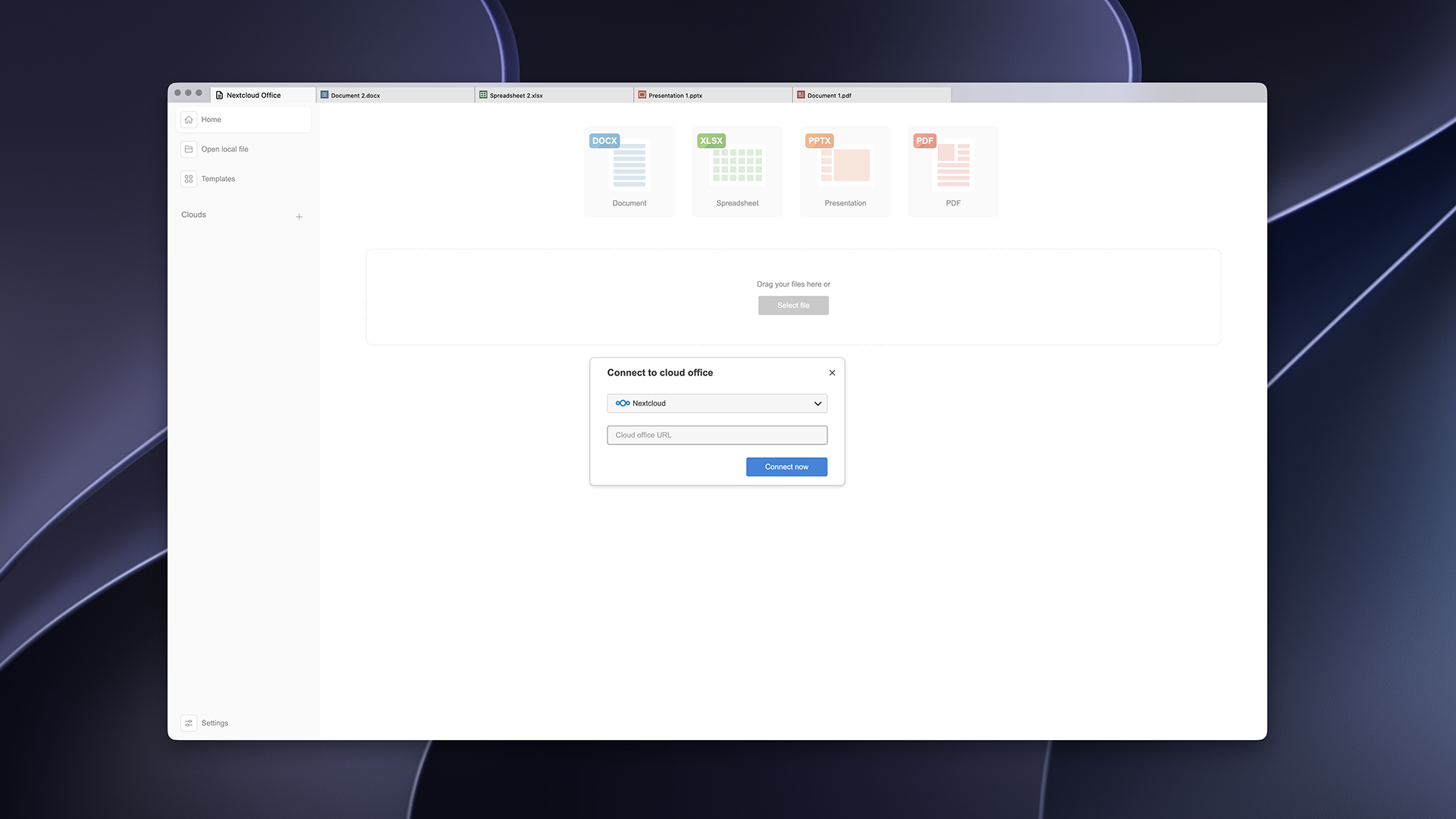
Need to access your online files? You can connect your Nextcloud instance to the Nextcloud Office Desktop app to access all the files available to you, and edit them on your own or with your team in real time.
How to connect the Nextcloud Office Desktop app to the cloud:
Click “+” in the “Clouds” section in the Home tab
Choose “Nextcloud“ and specify the URL of your instance
Log in with your credentials
Once connected, choose your Nextcloud instance from the list. You can connect more than one instance to one app to have access to multiple cloud working environments.
Use your own fonts
The Nextcloud Office Desktop app uses fonts installed on your machine, including corporate fonts and default fonts from your OS, like Microsoft fonts on Windows. You can install additional custom fonts any time. No need to bother your Nextcloud admins!
Note: if your collaborators don’t have the same font, they’ll see a fallback font in their version of the file.
Digital signatures and file protection
The Nextcloud Office Desktop app lets you use digital signatures to sign your documents, spreadsheets and presentations. A signature shows who signed a file and that nobody has changed it since. Go to Protection tab and add a signature via Signature feature.
Keep in mind that you need a digital certificate to sign documents. To obtain one, you can ask your IT team at work, or get one for personal use from a trusted provider. You can find providers approved in the EU in this list.
In the Protection tab, you can also set a password for a file, or limit what others can do: comment, fill in forms, or edit with tracked changes only.
How to install the Euro-Office desktop app
You can find and download the latest version of the Nextcloud Office Desktop app from our official installation page.
The app is available for:
Windows: x64, ARM64
Linux: .deb (Debian, Ubuntu), .rpm (Fedora)
macOS (Apple Silicon)
You can also find unsigned builds of Euro-Office desktop app and build the app from the source yourself by following the instructions on GitHub.
We want to keep improving the app. You are welcome to share any issues you find with our engineering team on GitHub.
Want to contribute to Euro-Office? Here’s how to get involved
Contributions are welcome! Whether it’s a bug report, a feature idea, a translation, or a pull request, here’s how to take part:
Found a bug or have an idea? Open an issue and describe what you ran into or what you’d like to see.
Want to contribute code? Fork the relevant component repo, make your change, and open a pull request. For build changes, see the build docs.
Want to help translate? Localization improvements are always appreciated — see the editors‘ interface translations.
Please keep contributions compatible with the project’s AGPL v3 license.
Nextcloud Hub 26 Summer ist eine Gemeinschaftsleistung des Nextcloud-Teams, unserer Community und unserer Partner und wird auf Grundlage davon weiterentwickelt, wie es tagtäglich genutzt wird. Erstellen Sie mit Nextcloud Teams einen eigenen Bereich für Ihr Team, organisieren Sie Ihre Erinnerungen mit der neuen Nextcloud Photos-App und nutzen Sie die von Ihnen gewünschten Features in allen Apps. Lesen Sie weiter, um einen vollständigen Überblick über den neuesten Release zu erhalten.
Nextcloud ist die erste Cloud-Plattform, die mit dem Umweltzeichen „Blauer Engel“ ausgezeichnet wurde und damit beweist, dass eine digital souveräne und grüne IT möglich ist.
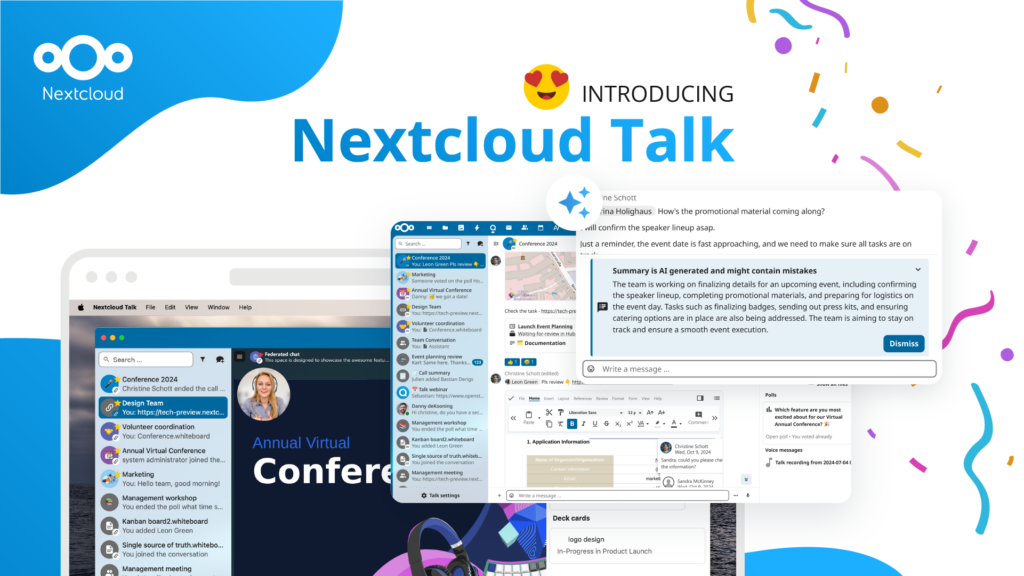
Unternehmen, ob klein oder groß, brauchen eine Möglichkeit, die Ausfallsicherheit und digitale Souveränität ihrer Abläufe zu gewährleisten - eine Open-Source-Alternative zu Teams, die die Privatsphäre respektiert. Und heute stellen wir diese Lösung vor - Nextcloud Talk.
Bechtle und Nextcloud kündigen heute eine vollständig verwaltete Kollaborationsplattform für den öffentlichen Sektor an, die keiner Ausschreibung bedarf und sofort bereitgestellt werden kann.
Our mission is to help individuals, businesses and organizations achieve digital sovereignty and regain control over their data. Nextcloud Hub 5 marks a massive step forward towards achieving this mission, putting the power of AI into your hands – in a way that keeps you in control. New release, new possibilities Hub 5 builds on […]
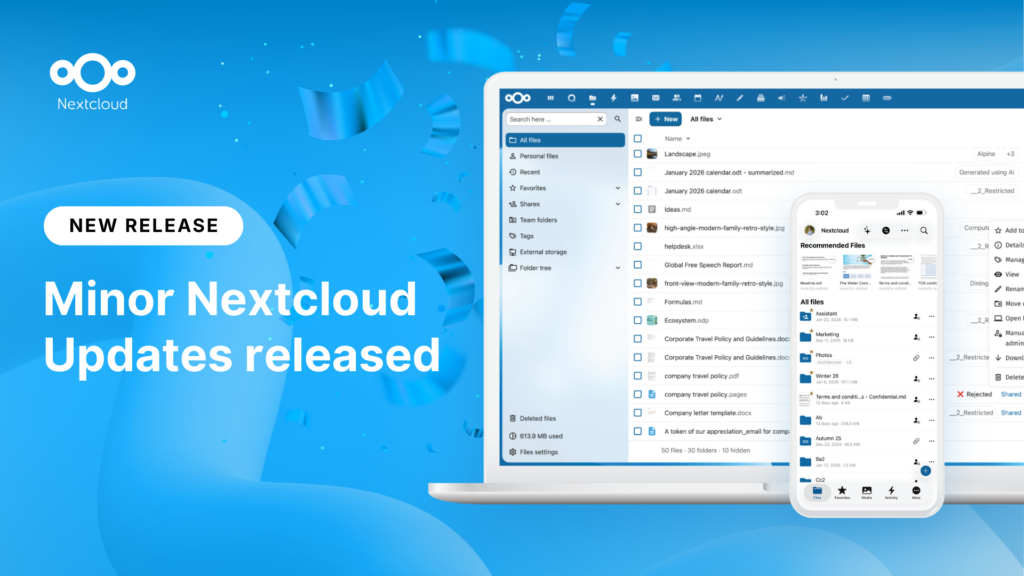
New maintenance updates are available for Nextcloud Hub. Read more in this post or access the full changelog on our website. Keep your server up-to-date!
Switch, the foundation of the Swiss universities, moved 39,500 students, teachers and researchers at 65 organizations to Nextcloud over a single weekend. That was 585 TB of data in 32 hours. As criticism of Big Tech licensing in education grows, Switzerland joins a growing list of universities choosing digital sovereignty. Their migration also shows that switching is a manageable process, not an impossible challenge.
Wir speichern einige Cookies, um Besucher zu zählen und die Nutzung der Website zu erleichtern. Diese verlassen unseren Server nicht und dienen nicht der Verfolgung Ihrer online-Aktivitäten.
Weitere Informationen hierzu finden Sie in unserer Datenschutzrichtlinie. Anpassen
Statistik-Cookies sammeln anonym Informationen und helfen uns zu verstehen, wie unsere Besucher unsere Website nutzen. Wir verwenden cloud-gehostetes Matomo
Dienst:Matomo
Cookie-Beschreibung:
_pk_ses*: Zählt den ersten Besuch des Benutzers
_pk_id*: Hilft, die Besuche nicht doppelt zu zählen.
mtm_cookie_consent: Erinnert daran, dass der Nutzer seine Zustimmung zur Speicherung und Verwendung von Cookies gegeben hat.
Cookie-Ablauf:_pk_ses*: 30 Minuten
_pk_id*: 13 Monate
mtm_cookie_consent: 30 Tage