For Android users with de-googled phones, ensuring push notifications are delivered reliably can be a challenge. Privacy- and security-focused Android ROMs solve this by either re-implementing Google Play Services’ APIs (e.g. microG) or giving users the option to use them in a sandbox (e.g. GrapheneOS). But in both cases, every push notification still involves Google’s servers.
One Google-free way to receive push notifications is to move processing to a different server of your choice. The UnifiedPush specification used by distributor apps like NextPush, Sunup, and ntfy helps you with that. It lets you replace the Google Play Services part and connect to your Nextcloud, Mozilla’s push services, or a self-hosted server, respectively, to process notifications.
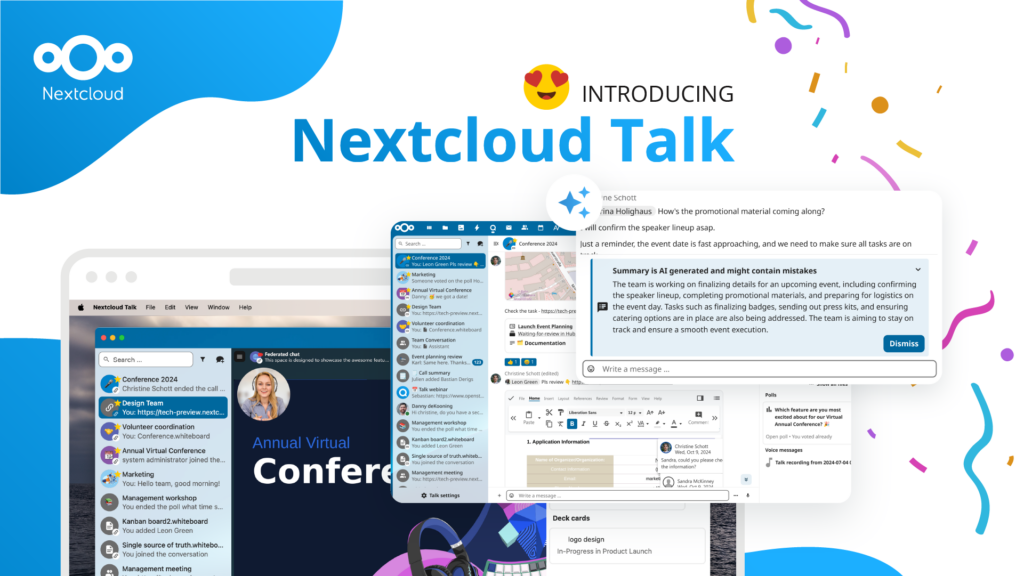
In this article, you’ll learn how you can receive push notifications on the Nextcloud Talk Android app without Google Play Services by enabling UnifiedPush in the app’s settings and installing the distributor app Sunup.
In case you’re new to the topic of privacy-respecting push notifications, you can read more about why Google’s way of handling notifications is problematic and how some open source apps deal with this in the excursus below.
💡 Excursus: Google Play Services vs. UnifiedPush
The problem with push notifications via Google Play Services
In the early days of Android, there was no dedicated, OS-level push mechanism, so developers who wanted to send notifications to users had to build their own. Some would let their apps poll their servers periodically, others would establish a constant connection in the background. This drained the battery fast.
To solve this problem, Google introduced «Cloud to Device Messaging» (C2DM), which was later replaced by «Google Cloud Messaging» (GCM) and finally «Firebase Cloud Messaging» (FCM), which is what most Android apps use today. It centralizes the infrastructure for processing notifications and only requires a single Google Play Services connection to push them to the phone.
However, since virtually every notification passes through Google’s servers, it can technically see metadata about when and how often you’re receiving notifications from which apps, even if it can’t read encrypted message content. Naturally, privacy-conscious users want to avoid this, which is why some Android apps use a different mechanism.
How privacy-focused Android apps handle push notifications
One app that minimizes the metadata Google can see is Signal. When a new message arrives for you, Signal’s own servers send FCM a payload that contains no sender info and no content. When it is delivered to your phone, it only tells your Signal app to wake up, nothing more. The app then reaches out to the Signal servers to fetch the actual end-to-end encrypted message.
Of course, this approach still involves Google’s FCM, so some apps keep their own connections running in the background or periodically check their servers to then generate the notifications locally once they detect something new. However, this can result in increased background activity, which makes the process more likely to be terminated by aggressive battery-optimization.
The privacy-respecting alternative: UnifiedPush
No matter how apps handle push notifications, they always involve a third-party server, be it Google’s or the app developers’ own. If you want to have full control over where your notifications are processed, you need to be able to specify your own server (including one you run yourself, if you prefer that), and UnifiedPush helps you with that.
UnifiedPush defines a set of interfaces specifying what messages get exchanged between which parties without dictating how each party is built internally (similar to how SMTP/IMAP works for email). To receive push notifications, you’ll also need a distributor app installed on your phone (e.g. NextPush, Sunup, or ntfy), a push server the distributor connects to (e.g. your Nextcloud, a third-party server like Mozilla’s, or your own self-hosted setup), and an app that supports receiving push notifications via UnifiedPush (like Nextcloud Talk for Android).
For a setup involving Sunup (which is the approach described in the next section), the process will then look like this:
When you receive a new message in Nextcloud Talk, the server running your Nextcloud sends the notification payload to your push server (in this case Mozilla’s), which then forwards it to Sunup (the distributor). Sunup hands it off to the Nextcloud Talk Android app, which displays it on your phone.
In this setup, Mozilla’s push server replaces Google’s FCM and Sunup replaces Google Play Services.
How to enable UnifiedPush-based notifications for the Nextcloud Talk Android app
It only takes a few steps to set up UnifiedPush for your Nextcloud instance and the Nextcloud Talk app on Android with Sunup as the distributor. All you need to do is to enable web push for your Nextcloud, install the Sunup app, and enable UnifiedPush in the Nextcloud Talk app.
For instructions involving other distributor apps (e.g. NextPush or ntfy) or a self-hosted push server, please refer to the UnifiedPush documentation.
Step 1: Enable web push in your Nextcloud settings
Ensure you’re logged into your Nextcloud with an account that has administration privileges.
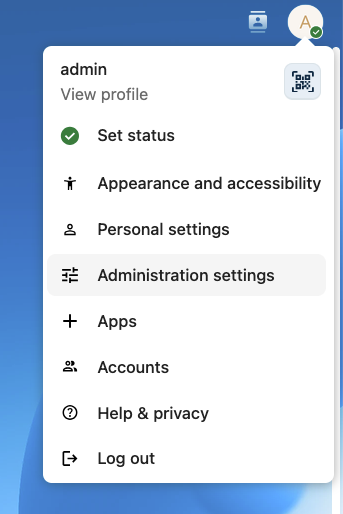
Head into the Administration settings and open the Notifications section (if it’s not there, install the Notifications app).
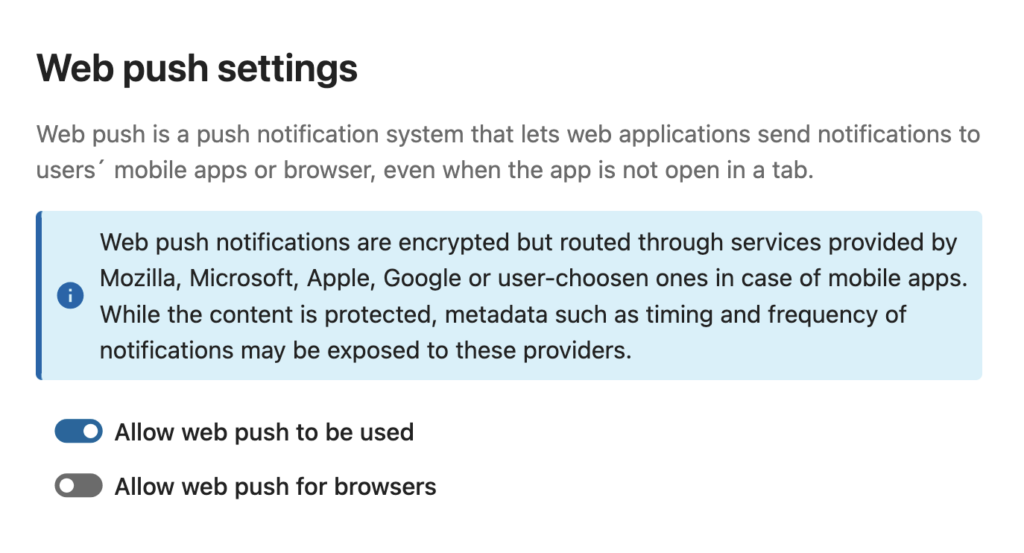
In the Web push settings section (available in Nextcloud 34 and higher), enable Allow web push to be used.
Step 2: Install the Sunup Android app
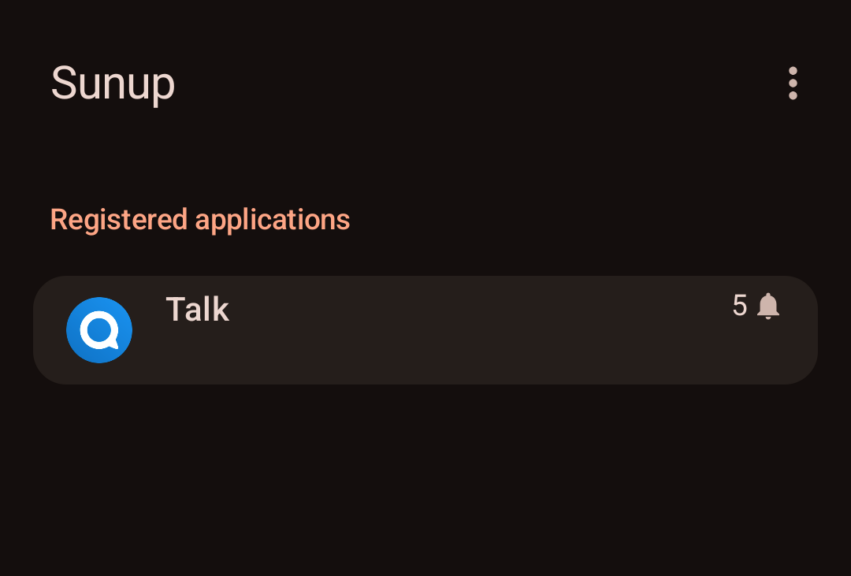
On your phone, install Sunup from F-Droid. When you open it, you’ll see a list of registered applications, which will probably be empty for now.
Step 3: Enable UnifiedPush in the Nextcloud Talk Android app
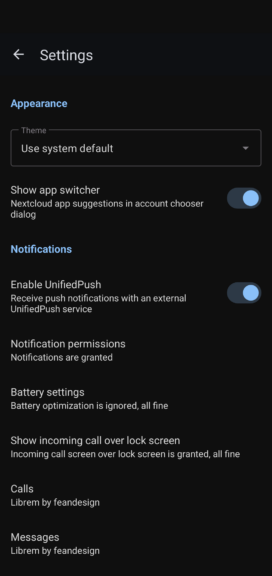
Still on your phone, open the Nextcloud Talk app (needs to be version 24.0.2 or higher) and go into Settings.
In the Notifications section, activate Enable UnifiedPush.
Please note that the «Enable UnifiedPush» toggle only appears if a distributor app like Sunup is installed on your phone.
If you now go back into Sunup, you should see Nextcloud Talk listed as a registered application.
Sunup displays a persistent notification in Android’s status bar to prevent its background process from being terminated. You can hide the notification without affecting Sunup’s performance by going into your phone’s settings, selecting «Apps» and then «All apps», selecting Sunup, opening «Notifications», and disabling the «Foreground Service» entry.
Conclusion
Now that you’ve set up UnifiedPush for Nextcloud Talk, notifications will no longer pass through Google’s servers. Hooray!
Should you notice any problems with Nextcloud Talk notifications not being delivered properly despite following the instructions, please refer to our documentation on debugging push notifications. You’re also welcome to ask questions in our help forum. The Nextcloud team and the community will do their best to provide support with any issues.
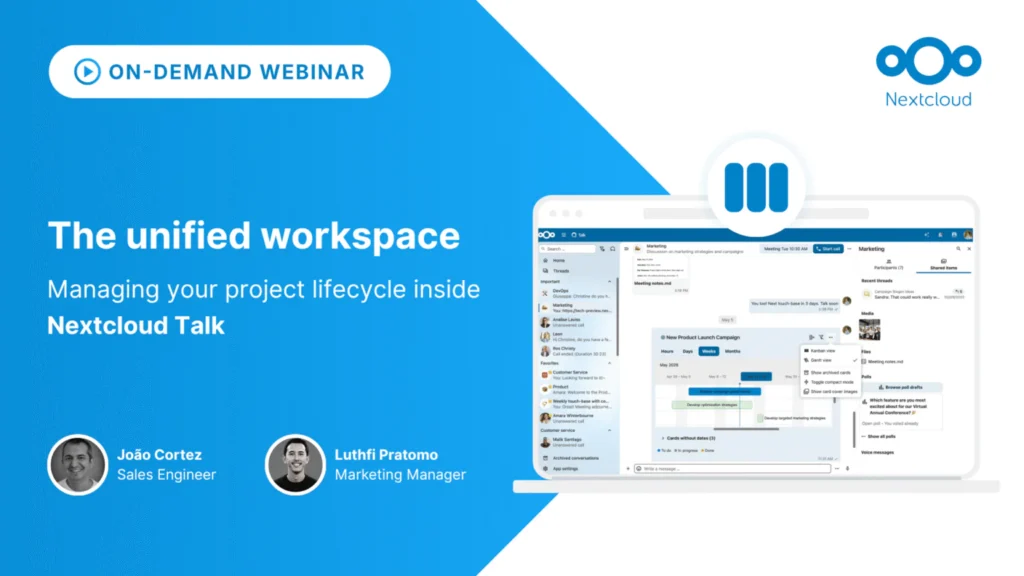
On-demand webinar:
Managing your project lifecycle inside Nextcloud Talk
Many teams lose hours every day to context switching, jumping continuously between messaging apps, project management tools, and external document editors.
In this webinar, Sales Engineer João Cortez demonstrates how Nextcloud Talk allows you to run your entire project lifecycle without ever leaving your chat room, all while maintaining 100% data sovereignty and strict compliance control.