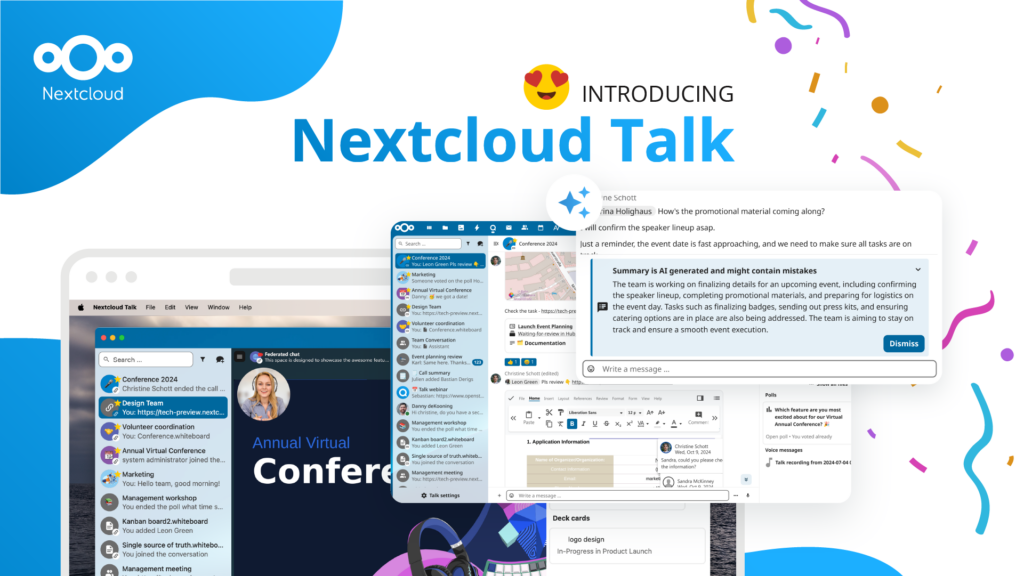
The work chat saved us from the email, but who’s going to save us from the work chat? In this article, we discover how your work chat app wears you down, and how Nextcloud Talk’s new features keep group conversations more quiet and focused.
The constant pressure to remain responsive and stay “always on” contributes to technological overload, which is a known mental health hazard.
Needless to say, in work group chats, the exposure is especially intense. Not only are the pings and updates in the work chat apps distracting, but it’s also easy to get caught in the torrent of conversations once we absolutely have to visit a busy 50-member room.
It is all in design, if you ask us. In the modern remote work setting, chats are inevitable. We can’t always hop on calls, and emails are not agile and real-time enough for a quick conversation. So what’s the way out?
We have an idea: why not make the work chat nice and quiet?
How to keep the work chat quiet with Nextcloud Talk
When creating Nextcloud Talk, we asked ourselves: what will help people survive 8 hours a day in a work chat? We believe a chat app should promote a healthy working culture and respond to modern workplace design challenges, such as digital fatigue.
Let’s help you get started on keeping your work chats focused. Below, discover some of the key Nextcloud Talk chat features that keep you in the loop, but gently.
Use Threads to make discussions easy to follow
Threads in group chats give you more control over your conversations and keep you focused. They keep side discussions tied to the original message, so feedback and context don’t get lost in the main flow.
Where to find: Start a thread from the + button. Find threads in your conversation list.
With description and title, threads are clearly separated from the rest of the conversation, not letting the discussion get lost.
You can jump to a „Thread view” and see messages others are adding to this specific thread. It can even go multiple levels deep if needed.
You can follow and unfollow threads, and always find them in the threads overview on top right in your conversation list in Nextcloud Talk.
Start fresh with the Nextcloud Talk Home dashboard
The Nextcloud Talk Home dashboard shows an overview of everything you need before you start: upcoming meetings, new messages, your mentions, and the reminders you have scheduled for yourself. It first opens once you enter Nextcloud Talk, and you can return to it any time by clicking Home at top of your conversation list.
In Nextcloud Hub 25 Autumn, we cleaned up the interface, updated buttons and icons and added colorful graphics to some of the sections at the bottom.
Catch up and prepare for the new day:
Check upcoming meetings with meeting details and quick access to the location
Browse unread mentions in all your conversations to catch up quickly
See upcoming reminders on messages to keep your standing To-Dos in check
Perform instant actions:
Start an online meeting
Call a phone number via Nextcloud Talk
Create a conversation
Join other open conversations. All of them are available to browse via your Home dashboard.
Revise your device settings
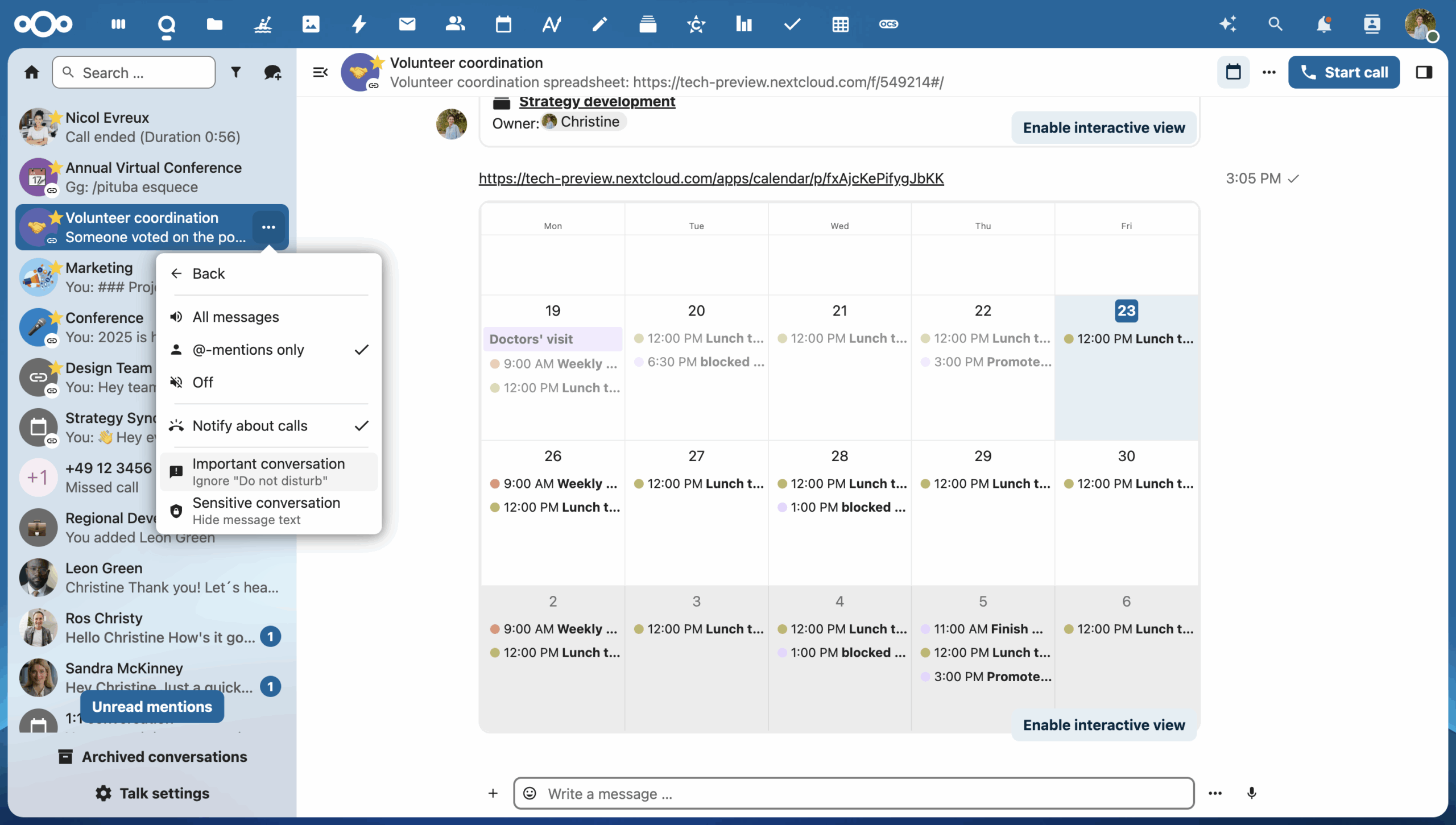
„Important“ chats ignore do-not-disturb mode
Marking a conversation as “Important” will let Nextcloud Talk ignore your “Do not disturb” status for this conversation, so you can rest assured you won’t miss critical communication outside of your normal availability time. Enjoy a day off you deserve!
Where to find:Conversation context menu (behind “three dots” icon) → Notifications → Important conversation
Less distraction with compact mode
To keep your conversation list visually clean and distraction-free, you can hide unnecessary details and message previews with compact mode.
Where to find:Nextcloud Talk Settings → Appearance → Toggle “Show conversations list in compact mode”
Automatic availability and status
When an event is marked as “Busy” in your calendar, your status automatically changes to “Busy” for the time of the event.
How to configure manually:Click on your avatar and choose “Set status”
You can centrally configure an absence period that will also reflect everywhere in Nextcloud Talk and other Nextcloud Hub apps.
Where to find: Nextcloud Settings → Availability → Absence
How Absence setting works in Nextcloud Talk:
Your profile shows an out-of-office status message for the absence period
In private chats, Nextcloud Talk displays a banner with your custom absence message, links to your replacement colleague if you’ve assigned one.
The same information is shown in other apps where relevant, for example, an auto-reply message in your mail.
In your settings, you can also set daily availability times Nextcloud Hub-wide, which will turn on “Do not disturb” mode outside of your configured working hours, and help others know you are busy.
Where to find: Nextcloud Settings → Availability → Availability
All of that in your mobile app
Nextcloud Talk mobile app brings your chats and meetings to your mobile devices, making it easy to access your work chats from anywhere and stay in the loop even when away from your computer. All features and settings we discovered today, like do-not-disturb mode and important chats, work on mobile too. So there’s no need to switch your phone off the grid to avoid unwanted messages and alerts after work.
In the last release, we redesigned the chat interface on iOS, bringing the familiar bubble-style layout to your messenger.
Get the app for your iOS or Android device and start using Nextcloud Talk on the go:
Nextcloud Hub 25 Autumn: Your digital workspace, ready in no time
Watch our launch presentation to discover all the new features of Nextcloud Hub 25 Autumn. Wish to experience them first-hand right away? Sign up for an instant trial or get the new version now!
Get Nextcloud Hub 25 Autumn now!
Start your instant trial right away or download the latest version!
Jetzt ist es Zeit, die Kontrolle über Ihre Daten zu übernehmen. Wir präsentieren den neuen Nextcloud Hub, eine leistungsstarke Open-Source-Kollaborationsplattform für volle Datenkontrolle. Entdecken Sie Verbesserungen in Leistung, Design und Sicherheit sowie viele neue und verbesserte Tools für Ihren Arbeits- und Lebensalltag.
Nextcloud Hub 25 Autumn erleichtert Ihnen den Einstieg in eine leistungsstarke Zusammenarbeit, während Sie die vollständige Kontrolle über Ihre Daten behalten. Von globalen Design-Updates bis hin zu verbesserter Benutzerfreundlichkeit und Leistung – entdecken Sie unsere neueste Version in diesem Blog.
Nextcloud ist die erste Cloud-Plattform, die mit dem Umweltzeichen „Blauer Engel“ ausgezeichnet wurde und damit beweist, dass eine digital souveräne und grüne IT möglich ist.
Unternehmen, ob klein oder groß, brauchen eine Möglichkeit, die Ausfallsicherheit und digitale Souveränität ihrer Abläufe zu gewährleisten - eine Open-Source-Alternative zu Teams, die die Privatsphäre respektiert. Und heute stellen wir diese Lösung vor - Nextcloud Talk.
Bechtle und Nextcloud kündigen heute eine vollständig verwaltete Kollaborationsplattform für den öffentlichen Sektor an, die keiner Ausschreibung bedarf und sofort bereitgestellt werden kann.
Our mission is to help individuals, businesses and organizations achieve digital sovereignty and regain control over their data. Nextcloud Hub 5 marks a massive step forward towards achieving this mission, putting the power of AI into your hands – in a way that keeps you in control. New release, new possibilities Hub 5 builds on […]
From government institutions to research organisations and private companies: There is a growing urgency to regain control over data, infrastructure and digital collaboration. Austria is actively shaping this movement with great lighthouse projects.
Wir speichern einige Cookies, um Besucher zu zählen und die Nutzung der Website zu erleichtern. Diese verlassen unseren Server nicht und dienen nicht der Verfolgung Ihrer online-Aktivitäten.
Weitere Informationen hierzu finden Sie in unserer Datenschutzrichtlinie. Anpassen
Statistik-Cookies sammeln anonym Informationen und helfen uns zu verstehen, wie unsere Besucher unsere Website nutzen. Wir verwenden cloud-gehostetes Matomo
Dienst:Matomo
Cookie-Beschreibung:
_pk_ses*: Zählt den ersten Besuch des Benutzers
_pk_id*: Hilft, die Besuche nicht doppelt zu zählen.
mtm_cookie_consent: Erinnert daran, dass der Nutzer seine Zustimmung zur Speicherung und Verwendung von Cookies gegeben hat.
Cookie-Ablauf:_pk_ses*: 30 Minuten
_pk_id*: 13 Monate
mtm_cookie_consent: 30 Tage